Epson

    WF-C21000 Series / WF-C20750 Series / WF-C20600 Series

    User's Guide

    Search Tips

    • Printing
    • Copying
    • Scanning
    • Faxing (Fax-Capable Printers Only)
    • Maintaining the Printer

    Tips on Usage

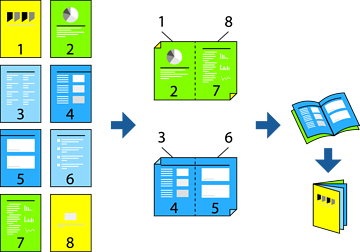
    • Printing a Booklet

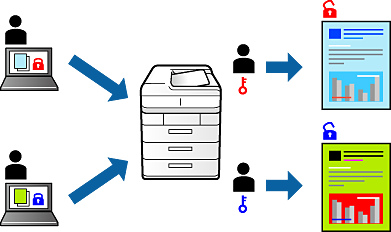
    • Printing Password-Protected Files

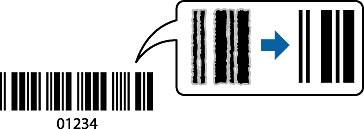
    • Printing Clear Bar Codes

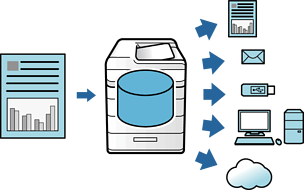
    • Using Storage

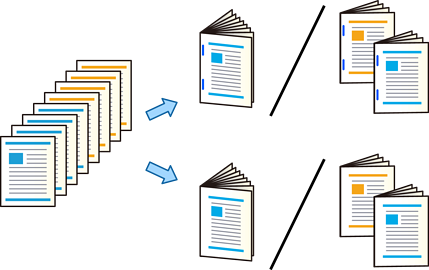
    • Copying Files and Creating Booklets Using Saddle Stitching or Folding

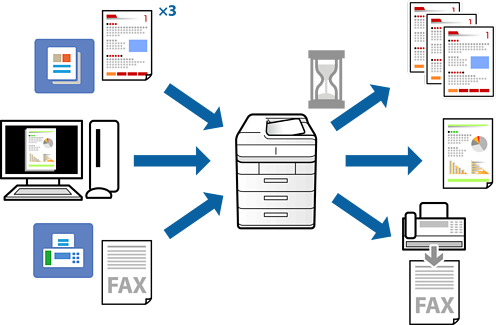
    • Reserve Job

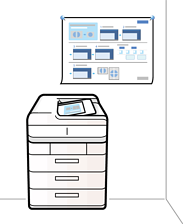
    Pin-up Manuals

    • Printing Documents
    • Printing on Envelopes
    • Printing Photos
    • Printing Web Pages
    • Printing Using a Cloud Service
    • Available Copying Methods
    • Basic Menu Options for Copying
    • Advanced Menu Options for Copying
    • Available Scanning Methods
    • Scanning Originals to a Network Folder
    • Scanning Originals to an Email
    • Scanning Originals to a Computer
    • Scanning Originals to a Memory Device
    • Scanning Originals to the Cloud
    • Scanning Originals to Storage
    • Scanning Using WSD
    • Scanning Originals to a Smart Device
    • Before Using Fax Features
    • Overview of this Printer's Fax Features
    • Sending Faxes Using the Printer
    • Receiving Faxes on the Printer
    • Menu Options for Faxing
    • Menu Options for Fax Box
    • Checking the Status or Logs for Fax Jobs
    • Sending a Fax from a Computer
    • Receiving Faxes on a Computer
    • Checking the Consumables Status
    • Improving Print, Copy, Scan, and Fax Quality
    • Saving Power
    • Installing or Uninstalling Applications Separately
    • Replacing Maintenance Rollers

    Solving Problems

    • The Printer Does Not Work as Expected

      In case your printer does not work as expected, such as when the printer does not turn on or you cannot copy, print, or scan.

    • A Message is Displayed on the LCD Screen

    • Paper Gets Jammed

    • It is Time to Replace the Ink Cartridges

    • It is Time to Replace the Maintenance Box

    • Printing, Copying, Scanning, and Faxing Quality is Poor

    • Cannot Solve Problem After Trying All Solutions

    Print Selected Pages

    © 2023-2025 Seiko Epson Corp. NPD6347-21 EN