
The items may not be available depending on other settings you made.
Increase the level of density when the copying results are faint. Decrease the level of density when ink smears.
Select the paper source that you want to use. When Auto is selected, a suitable size is fed automatically depending on the auto detected original size and the specified magnification ratio.
Configures the magnification ratio of the enlargement or reduction. Tap the value and specify the magnification used to enlarge or reduce the original within a range of 25 to 400%.
Auto
Detects the scan area and automatically enlarges or reduces the original to fit to the paper size you selected. When there are white margins around the original, the white margins from the corner mark ( ) of the scanner glass are detected as the scan area, but the margins at the opposite side may be cropped.
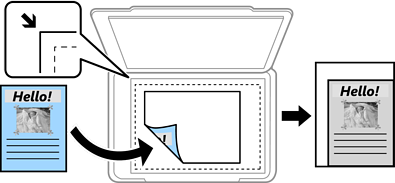
Reduce to Fit Paper
Copies the scanned image at a smaller size than the Reduce/Enlarge value to fit within the paper size. If the Reduce/Enlarge value is larger than the paper size, data may be printed beyond the edges of the paper.
Actual Size
Copies at 100 % magnification.
A3→A4 and others
Automatically enlarges or reduces the original to fit to a specific paper size.
Select the type of your original. Copies in optimal quality to match the type of original.
Select 2-sided layout.
1→1-Sided
Copies one side of an original onto a single side of paper.
2→2-Sided
Copies both sides of a double-sided original onto both sides of a single sheet of paper. Select the orientation of your original and the binding position of the original and the paper.
1→2-Sided
Copies two single-sided originals onto both sides of a single sheet of paper. Select the orientation of your original and the binding position of the paper.
2→1-Sided
Copies both sides of a double-sided original onto one side of two sheets of paper. Select the orientation of your original and the binding position of the original.
Select the copy layout.
Single Page
Copies a single-sided original onto a single sheet.
2-up
Copies two single-sided originals onto a single sheet in 2-up layout. Select the layout order and the orientation of your original.
4-up
Copies four single-sided originals onto a single sheet in 4-up layout. Select the layout order and the orientation of your original.
Select Collate (Page Order) to print multi-page documents collated in order and sorted into sets.

Select Group (Same Pages) to print multi-page documents by acquiring the same numbered pages as the group.
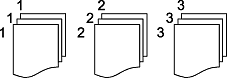
If you select Rotate Sort in Eject Paper, you can print alternately in the portrait direction and the landscape direction. Choose Auto as the Paper Setting when using this feature.
Specify these settings when you want to create a booklet from your copies.
Booklet
Allows you to create a booklet from your copies.
Binding
Select the binding position of the booklet.
Binding Margin
Specify the binding margin. You can set 0 to 50 mm as the binding margin in 1mm increments.
Cover
Allows you to add covers to the booklet.
Paper Setting
Select the paper source in which you loaded the paper for the covers.
Front Cover
Specify the print settings for the front cover. If you do not want to print on the front cover, select Do not Print.
Back Cover
Specify the print settings for the back cover. If you do not want to print on the back cover, select Do not Print.