
If you register the paper size and type on the screen displayed when you load paper, the printer informs you when the registered information and print settings differ. This prevents you from wasting paper and ink by making sure you are not printing on the wrong paper size or seeing unexpected colors due to using settings that do not match the paper type.
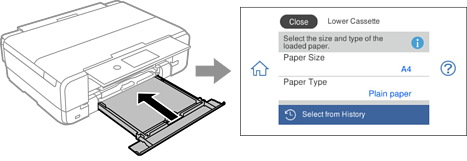
If the displayed paper size and type differ from the loaded paper, select the item to change. If the settings match the loaded paper, close the screen.
You can easily make paper size and type settings from your history. You can also lock frequently used paper combinations so that they remain in your history. Tap Select from History, select the paper size and paper type on the next screen, and then tap the lock icon ( ) for the paper setting you want to lock (
 ).
).
The paper setting screen is not displayed if you have disabled Paper Setup Auto Display in the following menus. In this situation, you cannot print from an iPhone, iPad, or iPod touch using AirPrint.
Settings > Printer Settings > Paper Source Setting > Paper Setup Auto Display