
|
|
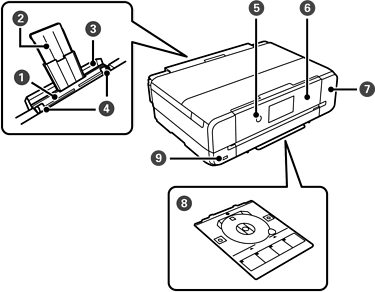
Rear paper feed slot |
Load one sheet of paper at a time by hand. |
|
|
Paper support |
Supports loaded paper. |
|
|
Rear paper feed slot cover |
Prevents foreign substances from entering the printer. This should normally be kept closed. |
|
|
Edge guides |
Slide to the edges of the paper so that it feeds straight into the printer. |
|
|
|
Turns the printer on or off. Make sure the power light is off before you unplug the power cord. |
|
|
Control panel |
Indicates the printer's status and allows you to perform maintenance or select settings. You can change the angle of the control panel. |
|
|
Maintenance box cover |
Remove when replacing the maintenance box. The maintenance box is a container that collects a very small amount of surplus ink during cleaning or printing. |
|
|
Disc tray |
When printing on a disc, remove this from the bottom of the printer, attach a disc, and insert the disc tray into the disc tray slot. When not printing on a disc, remove any disc from the tray and store the tray under the lower paper cassette. |
|
|
External interface USB port |
Connect an external storage device. |
|
|
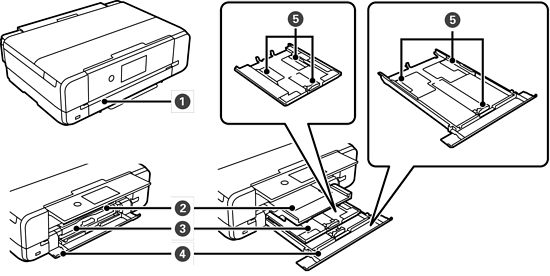
Front cover |
Open to load paper in the paper cassette. |
|
|
Output tray |
Holds the ejected paper. When you start printing, this tray extends to fit the paper size automatically. If you select Yes on the screen displayed when you turn the printer off, the tray closes automatically. To close the tray manually, tap |
|
|
Paper cassette 1 |
Load paper. |
|
|
Paper cassette 2 |
|
|
|
Edge guides |
Slide to the edges of the paper so that it feeds straight into the printer. |
|
|
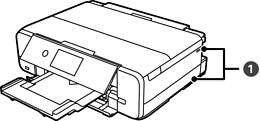
Vents |
Releases heat from the inside of the printer. Vents are on the bottom right, bottom left, and on the right-hand side. Do not cover the vents when placing the printer. |


 (Power button/light)


 on the home screen.