
You can select photos stored on a memory device to print onto a printable CD, DVD, or Blu-ray Disc.

Select the following settings on the LCD screen:
Various Prints > Disc label/Jewel case > Print on Disc label
Before printing on the CD/DVD, see the CD/DVD handling precautions.
Do not insert the CD/DVD tray while the printer is operating. This may damage the printer.
Place a CD/DVD on the CD/DVD tray with the printable side facing up. Press the center of the CD/DVD to securely attach it to the CD/DVD tray. Otherwise, the CD/DVD may fall off the tray. Turn the tray over to check that the CD/DVD is firmly secured in the tray.
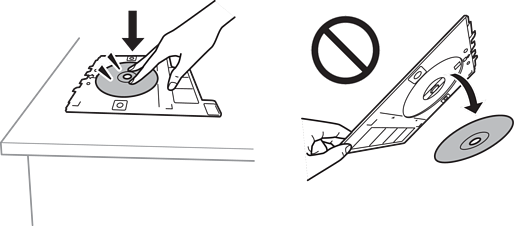
After printing is finished, make sure you remove the CD/DVD tray. If you do not remove the tray and turn the printer on or off, or run head cleaning, the print head will strike the tray and may cause the printer to malfunction.
If you need to change the inner or outer diameter, select  in the upper-right of the screen, and then select Disc label Inner/Outer. Select the outer and inner diameter using
 , and then select OK. You can also set the diameter by selecting the value in the frame and using the on-screen keypad.
You can set 114 to 120 mm as the outer diameter, and 18 to 46 mm as the inner diameter, in 1 mm increments.
The inner and outer diameters are restored to their defaults after printing the disc label. You can change the defaults in Settings > Printer Settings > Disc label Inner/Outer.
To print a test label, select Test print on A4 paper or Test Print on Letter/A4, and then load A4 or Letter size plain paper in the paper cassette. You can check the printout image before printing on a disc label.
You may feel slight friction when inserting the tray into the printer. This is normal and you should continue to insert it horizontally.