
If the nozzles are clogged, the printouts become faint, there is visible banding, or unexpected colors appear. If the nozzles are severely clogged, a blank sheet will be printed. When print quality has declined, first use the nozzle check feature to check if the nozzles are clogged. If the nozzles are clogged, clean the print head.
Do not open the scanner unit or turn off the printer during head cleaning. If the head cleaning is incomplete, you may not be able to print.
Head cleaning consumes ink and should not be performed more than necessary.
When ink is low, you may not be able to clean the print head.
If print quality has not improved after running a nozzle check and Cleaning alternately 3 times or Power Cleaning once, wait for at least 12 hours without printing (we recommend turning off the printer), and then run a nozzle check. If print quality has still not improved, run Cleaning and a nozzle check again. If it has still not improved and you did not yet run Power Cleaning, run Power Cleaning and a nozzle check. If it has still not improved and you already run Power Cleaning, contact Epson support.
To prevent the print head from drying out, do not unplug the printer while the power is on.
You can check and clean the print head by using the printer's control panel.
Select Maintenance on the printer's control panel.
Select Print Head Nozzle Check.
Follow the on-screen instructions to load paper and print the nozzle check pattern.
Check the printed pattern to see if the print head nozzles are clogged.
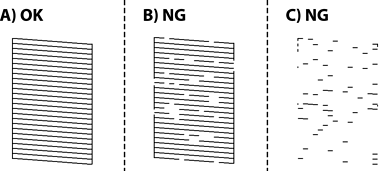
 . No further steps are needed.
 , and then select Cleaning on the next screen.
, and then select Power Cleaning on the next screen.
, and then select Cleaning on the next screen.
, and then select Power Cleaning on the next screen.
Follow the on-screen instructions to perform print head cleaning or Power Cleaning.
When cleaning is finished, another nozzle check pattern is printed automatically. Repeat cleaning and printing the pattern until all lines are printed completely.
If all nozzle check lines are not printed completely after running a nozzle check and Cleaning alternately 3 times or Power Cleaning once, wait for at least 12 hours without printing (we recommend turning off the printer), and then run a nozzle check. If all nozzle check lines are not printed completely, run Cleaning and a nozzle check again. If all nozzle check lines are still not printed completely and you did not yet run Power Cleaning, run Power Cleaning and a nozzle check. If all nozzle check lines are still not printed completely and you already run Power Cleaning, contact Epson support..
You can also check and clean the print head from the printer driver.
Windows
Click Print Head Nozzle Check on the Maintenance tab.
Mac OS
Apple menu > System Preferences (or System Settings) > Printers & Scanners (or Print & Scan, Print & Fax) > Epson(XXXX) > Options & Supplies > Utility > Open Printer Utility > Print Head Nozzle Check