
You can insert slip sheets and print by specifying the pages and paper sources. This section gives instructions for inserting a slip sheet before pages 3 and 8 and printing pages 6 and 7 on different colored paper as shown in the figure.
Note that you cannot specify same page for the slip sheet and the paper to be printed using the page and paper source. Also, some pages may be printed on one side depending on the settings.
The slip sheet is "a" in the figure below. The paper you will specify the page numbers and paper sources for are "b" in the figure below.
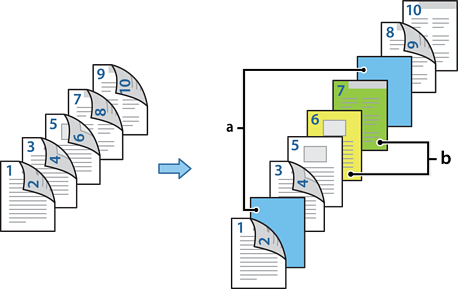
Load the paper as described below.
Paper Cassette 1: white paper (plain paper), Paper Cassette 2: light blue paper (slip sheet), Paper Cassette 3: yellow paper, Paper Cassette 4: green paper
Open the file you want to print on your computer.
On the printer driver's Main tab, select the primary paper source from Paper Source.
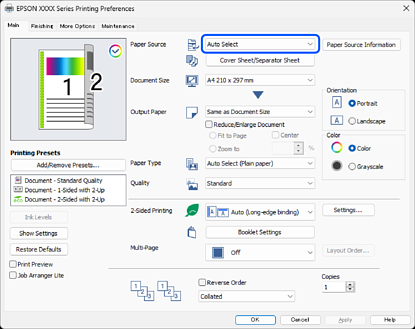
In this example, select Paper Cassette 1 to specify white paper (plain paper) for pages 1, 2, 3, 4, 5, 8, 9, and 10. The process for inserting slip sheets before pages 3 and 8, and how to specify colored paper for pages 6 and 7 will be explained beginning from step 5.
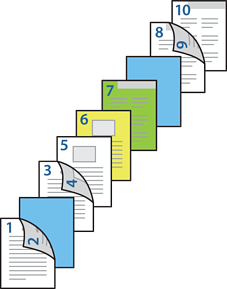
Select Auto (Long-edge binding) from 2-Sided Printing.
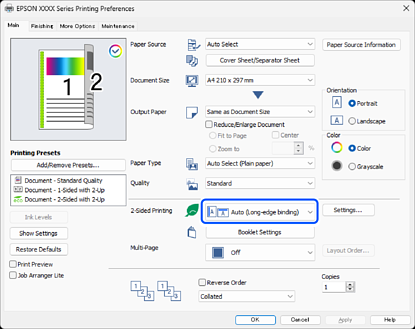
Select Cover Sheet/Separator Sheet from Paper Source.
Select Slip Sheet/Chapter and click Settings to open the detailed settings screen.
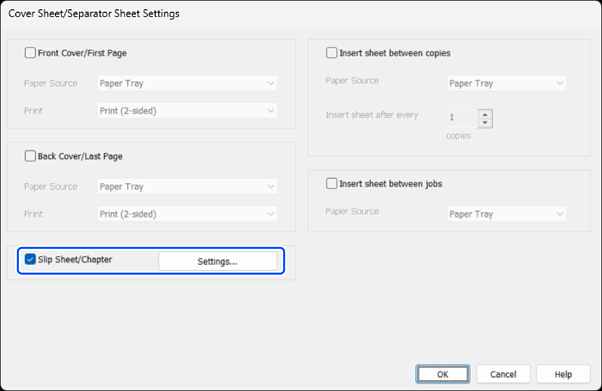
Follow the steps below to make detailed settings on the Slip Sheet/Chapter Settings screen.
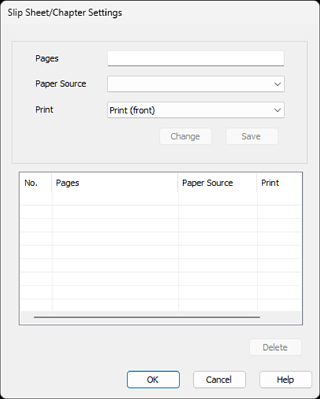
In this example, enter the page numbers that will have slip sheets in front of them in Pages.
Pages: 3,8
Select the paper source in which the slip sheet is loaded from Paper Source.
Paper Source: Paper Cassette 2
Select Do not print from the Print menu and click Save.
Enter the page number to be printed by specifying the paper source in Pages.
Pages: 6
Select the paper source you want to use for the specified pages from Paper Source.
Paper Source: Paper Cassette 3
Select Print (front) from Print menu, and click Save.
Follow steps 11 to 13 to save the next specific pages and paper source settings.
Pages: 7, Paper Source: Paper Cassette 4
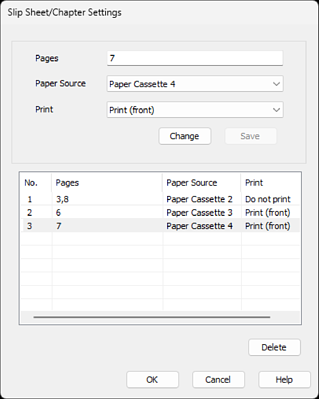
Click OK to close the Slip Sheet/Chapter Settings screen, and then click OK to close the Cover Sheet/Separator Sheet Settings screen.
Select other settings as needed on the Main, Finishing or More Options tabs as necessary, and then click OK.
Click Print.