
You can print files from storage, and then eject each set of printouts saddle stitched or folded. You can also split the number of pages with saddle stitching or folding.
This section explains the basic steps.
This feature is available with the optional booklet finisher.
Select Storage on the home screen.
Select the folder containing the file you want to print, and then select Open.
Select the file.
Select Print Settings.
Select the Basic Settings tab.
Select Booklet > Booklet, enable Booklet, and then select OK.
If a confirmation screen for automatically specified items is displayed, check the contents, and then select OK.
Select Saddle Stitch or Half Fold, and then enable Saddle Stitch or Half Fold on the displayed screen.
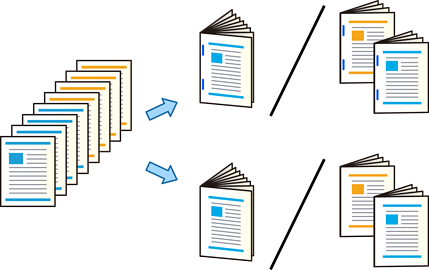
When you split the pages into separate booklets, enable Split on the settings screen, and then select how many sheets to split in Sheets per Staple or Sheets per Fold.
For example, to split 16 pages of data into 8 pages per booklet, set Sheets per Staple or Sheets per Fold to "2." "Sheets" here refers to the number of sheets of paper that make up the booklet (4 pages = 1 sheet).
If booklets or paper remain in the booklet tray, you will not be able to start bookbinding printing. Make sure there is nothing on the booklet tray.
Select other settings as necessary.
Tap  .
.