
You can scan the front and back of an ID card separately and save them as a single image with both sides displayed side by side.
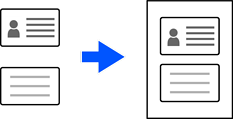
This feature is available from the scanner's control panel. Set ID Card to On in the Scan Settings of the following menu.
Network Folder/FTP
Cloud
USB Drive
This feature cannot be used in the following cases:
When scanning from a computer
When Computer is selected on the scanner's control panel
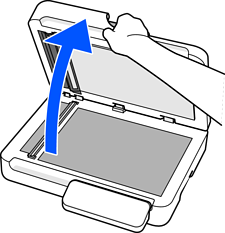
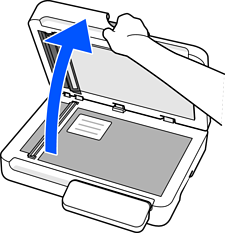
Open the document cover.
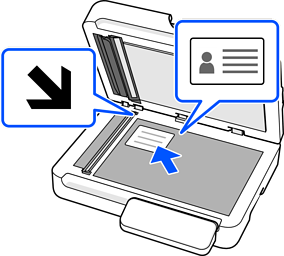
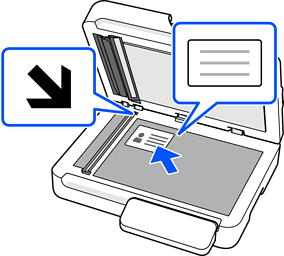
Scan the front side. Place the original face-down at least 6 mm (0.24 in.) away from the corner.
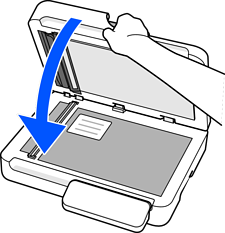
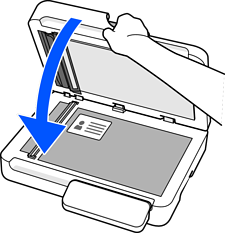
Close the document cover gently so that your original does not move.
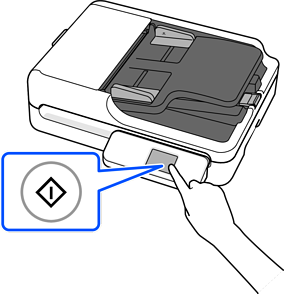
Tap  to start scanning.
After scanning the front side, open the document cover.
Scan the back side. Place the original face-down at least 6 mm (0.24 in.) away from the corner.
Close the document cover gently so that your original does not move.
Tap Start Scanning to start scanning the back.
After scanning the back, tap Last Original to save the image.