
After using the scanner for a while, paper powder and room dust in the ADF paper path and glass sections may cause problems with paper feed or scanned image quality. Clean the ADF after every 5,000 scans.
You can check the latest number of scans on the control panel or in the Epson Scan 2 Utility.
If a surface is stained with a hard-to-remove material, use a genuine Epson cleaning kit to remove the stains. Use a small amount of cleaner on the cleaning cloth to remove the stains.
Be careful not to get your hands or hair caught in the gears or rollers when cleaning the ADF. This could cause an injury.
Never use alcohol, thinner, or any corrosive solvent to clean the scanner. Doing so could cause deformation or discoloration to occur.
Never spray any liquid or lubricant on the scanner. Damage to equipment or circuits may cause abnormal operations.
Never open the scanner case.
You can set cleaning time notifications and alerts after making a certain number of scans on the control panel or in the Epson Scan 2 Utility. By default, a notification is sent after every 5,000 scans.
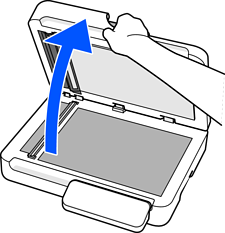
Open the document cover.
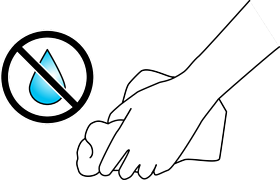
Prepare a soft, dry cloth.
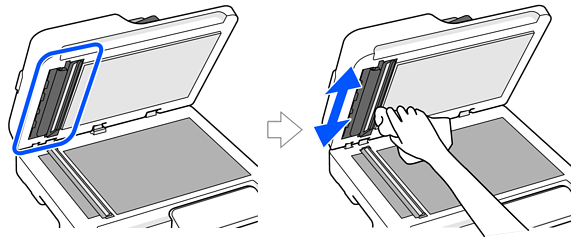
Wipe off any stains from the upper sensor and the paper path.
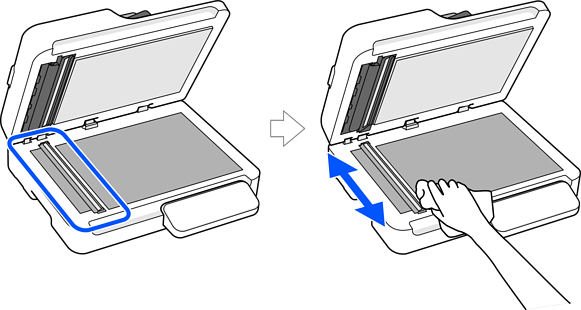
Wipe off any stains from the lower sensor and the paper path.
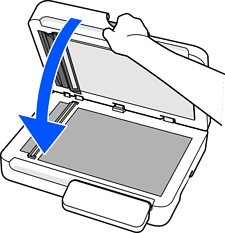
Close the document cover.
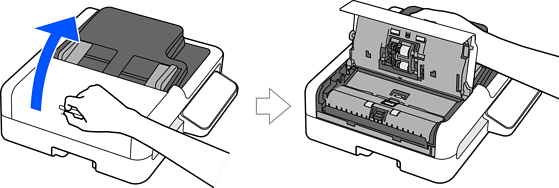
Open the ADF cover.
Prepare a soft cloth dampened with water.
Wipe off any stains from the upper rollers (two locations).
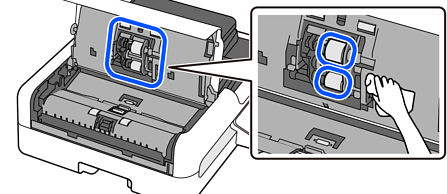
Wipe off any stains from the lower rollers (two locations) and pads (two locations).
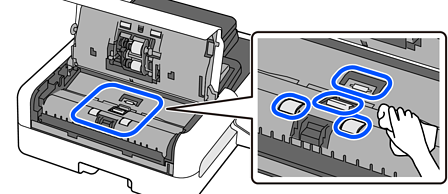
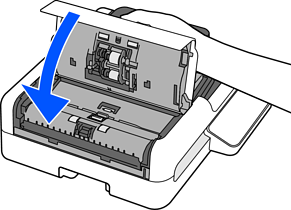
Close the ADF cover.
Reset the scan number on the control panel or in the Epson Scan 2 Utility.