 light turns on.
1
While holding down the [Wi-Fi] button, press the [Network Status] button until the  light and the light flash alternately.
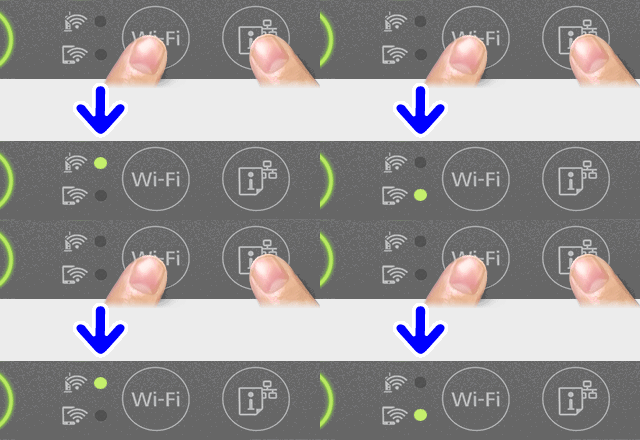
2 Wait until the process ends.
light turns on.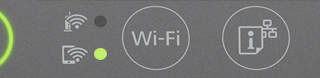
3 Load papers.
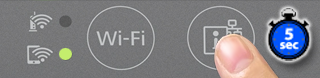
4 Hold down the [Network Status] button on the printer’s control panel for at least 5 seconds.
Note: |
|
If you release the button within 5 seconds, a network connection report is printed. Note that the SSID and Password for Wi-Fi Direct (Simple AP) are not printed on this report.
|
5 Check the SSID and password printed on the network status sheet. Display the Wi-Fi settings screen for the smart device, and then select the SSID shown on the network status sheet to connect.
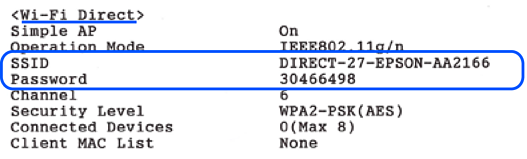
6 Enter the password printed on the network status sheet.