
You can send faxes by entering fax numbers for recipients on the printer's control panel.
Place the originals.
You can send up to 100 pages in one transmission; however depending on the remaining amount of memory, the number of pages you can send may be less.
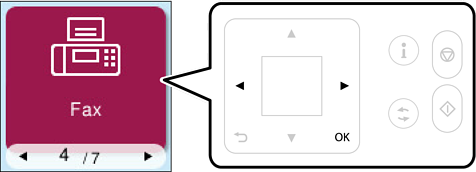
Select Fax on the printer's control panel.
To select an item, use the 
 buttons, and then press the OK button.
Specify the recipient.
Select Menu by pressing the OK button, and then select Scan Settings or Fax Send Settings to make settings as necessary such as the resolution and the sending method.
Press the  button to send the fax.
If the fax number is busy or there are any sending issues, the printer automatically redials after one minute.
To cancel sending, press the  button.
It takes longer to send a fax in color because the printer performs scanning and sending simultaneously. While the printer is sending a fax in color, you cannot use the other features.