
Solutions
Your Entra ID may be blocked by a conditional access policy.
Check your conditional access policies with Entra ID.
For detailed instructions, see the "Microsoft Learn" site.
Solutions
"To use this function, you must sign in to your email service. Please contact your administrator." is displayed.
Check Web Config for the current status.
Select the Network tab > Email Server > Basic
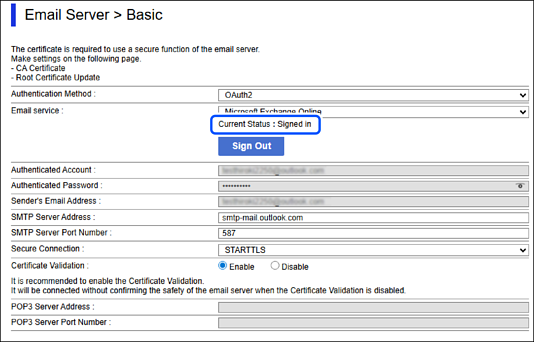
If the Current Status is Signed in the sign-in information may not have been saved to the printer. Click OK to send the setting information to the printer.
If there is no Current Status and the Sign In button is displayed, sign in.
The cloud service or email service is not connected, or the connection has expired.
Connect to cloud service or email service.
You need to sign in to cloud service again.
Sign in to cloud service.
Solutions
A certain period of time has passed since signing in without using the email sending function.
If a printer using OAuth 2.0 authentication has not been used for an extended period, or the email-sending function has not been used, the access token and refresh token will become invalid.
The administrator should perform the sign-in operation again.