
In Epson Scan 2, select the size of the book you want to scan as the Document Size in Main Settings.
When scanning text, select the size of the book as it is when it is fully open.
If the size is not in the list, select Customize, and then create the size manually. You can also select Auto Detect.
Make sure the book is placed correctly against the alignment marks.
If the edges of the scanned image are cut off, move the book slightly away from the edges of the scanner glass.
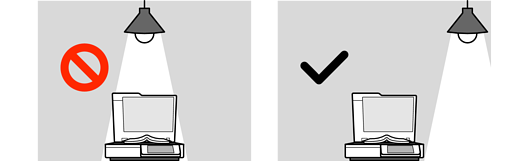
If there is a light source directly above the scanner glass, you may not be able to scan the correct area. Move the scanner to a location where light does not shine directly onto the scanner glass.
When you place a document with a dark-colored cover, scanning may not start automatically. If scanning does not start, select Start Scanning on the scanner's control panel.