
Book Scanning Mode allows you to efficiently scan books.
This feature is available when scanning while connected to a computer.
Do not look directly at the scanner's light source while scanning in Book Scanning Mode.
Start Epson Scan 2.
Select the size of the book in Main Settings > Document Size.
When scanning text, select the size of the book as it is when it is fully open.
If the size is not in the list, select Customize, and then create the size manually. You can also select Auto Detect.
Select Book Scanning Mode in Main Settings > Document Source, and then click Scan.
The scanner enters Book Scanning Mode and a message is displayed on the control panel.
Open the document cover.

Place the book face-down and align it with the corner of the scanner glass (next to the arrow mark).
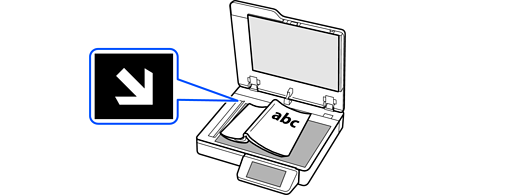
Lightly press the spine of the book so that the center of the page being scanned is flat during scanning.
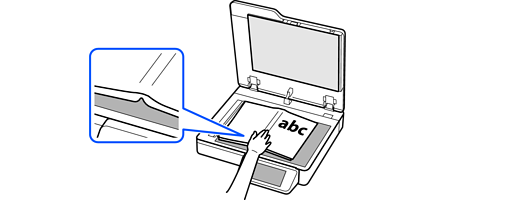
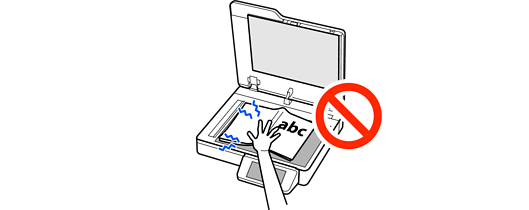
Do not press too hard on the scanner glass. Otherwise, the glass may be damaged.
Select Scan on the scanner's control panel to start scanning.
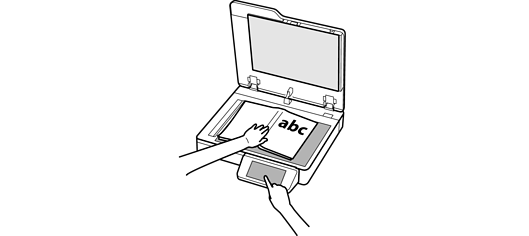
The first page is scanned.
You can check the scanned image on the Book Scanning Mode screen displayed on your computer.
You do not need to close the document cover during scanning.
If the center of the book is not flat on the scanner glass, the scanned image may be dark.
When the first scan is complete, remove the book from the scanner glass.
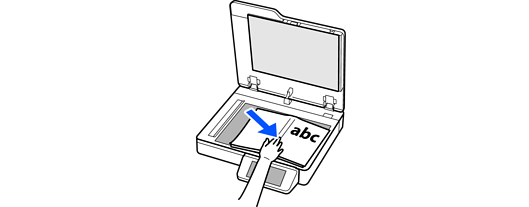
The carriage flashes while in Book Scanning Mode.

Place the book with the next page to be scanned facing down so that it does not overlap with the carriage.

While lightly pressing the spine of the book, move the book to align it with the corner of the scanner glass (next to the arrow mark).
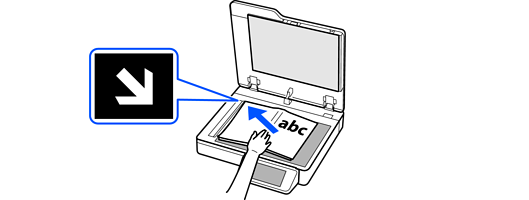
Scanning starts automatically. Do not move the book after the alarm sounds to indicate scanning is starting.
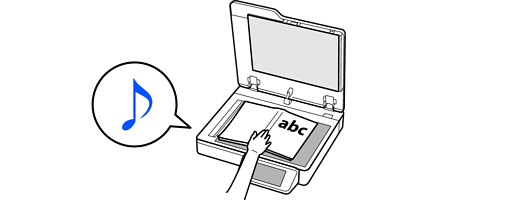
Do not press too hard on the scanner glass. Otherwise, the glass may be damaged.
To rescan, move the book away from the carriage, and then move it again to align with the corner of the scanner glass (next to the arrow mark).
When you place a document with a dark-colored cover, scanning may not start automatically. If scanning does not start, select Scan on the scanner's control panel.
When you have finished scanning the necessary pages, select Done on the scanner's control panel.
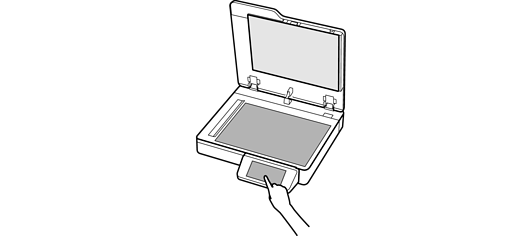
When you select Multi-TIFF or PDF in Image Format in Epson Scan 2, you can save up to 999 pages in one file.