About Epson ScanSmart
About This Help
Scanning and Saving Documents
Sending Invoice or Receipt Data to an Accounting Service
Exporting to MYOB Essentials
Exporting to MYOB AccountRight (Windows only)
Exporting to QuickBooks Online
Exporting to Xero
Tips
Saving as Editable Files (Microsoft® Office)
Sending to a Cloud Service
Stitching Photos
Increasing the Rate of Character Recognition
Changing Settings
Changing the Scanner
Changing the Scan Settings
Customizing Actions
Changing the File Name Settings
Changing the JPEG, PDF, and TIFF Settings
Changing the Application to Scan From the Scanner
About Invoice/Receipt Manager
Managing Scanned Invoice or Receipt Data
Exporting and Importing the Invoice/Receipt Database
Saving Invoice or Receipt Data in CSV or Image Data Format
Importing Categories
Troubleshooting
Pressing the Scanner Button Does Not Start Scanning
Cannot Send to the Cloud Service
Cannot Access the Accounting Service
Cannot Import Invoice or Receipt Data
Scanning Speed is Slow
Files are Named with an Old Date
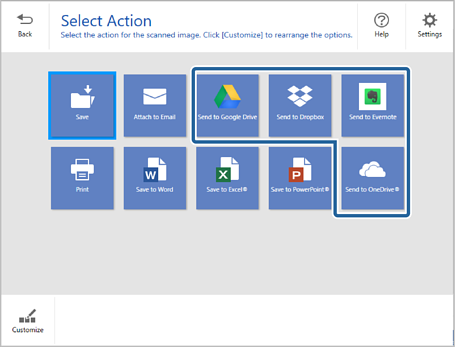
You can save scanned images to the following cloud services:
Google Drive
Dropbox
Evernote
Microsoft® OneDrive® (Windows only)
1Load the originals in your scanner.
See the User's Guide supplied with the scanner for details on loading originals.
2Press the start button on the scanner to start scanning and open Epson ScanSmart.
3Check the scanned image and click Next.
4Select how you want to send the scanned images on the Select Action window.
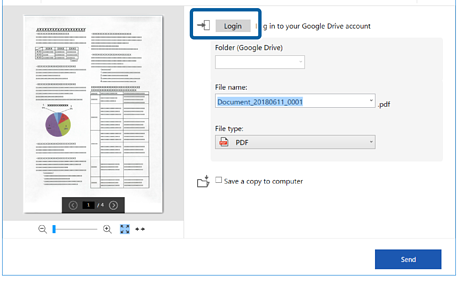
5Click Login to log in to your account.
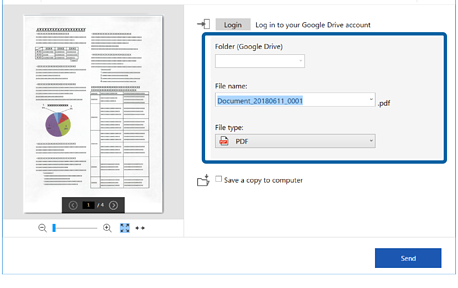
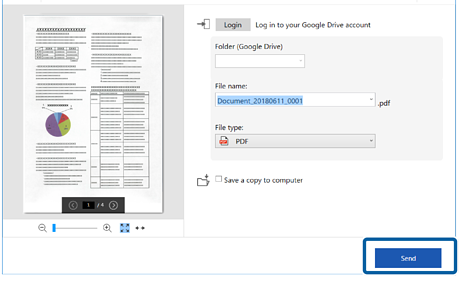
6Check or change the settings as necessary.
When you select Searchable PDF as the File type setting, you can select the language from the OCR language list.
If the OCR component is not installed, a message is displayed asking if you want to download it. Click Yes to start downloading.
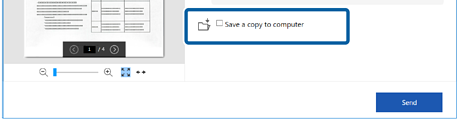
Select Save a copy to computer if you want to save the scanned images to your computer.
7Click Send.


 Home
Home
 button on the scanner, see the Troubleshooting link in Related Information at the end of the chapter.