Before Using the Printer
Part Names
Setup
Basic Operations
Cleaning
Troubleshooting
Appendix
Top > Cleaning > Cleaning the Thermal Head and the Platen Roller
Cleaning the Thermal Head and the Platen Roller
Epson recommends cleaning the thermal head to maintain receipt print quality. We recommend cleaning periodically (about once every 3 months).
Depending on the roll paper used, paper dust may stick to the platen roller and the paper may not be fed correctly. To remove the paper dust, clean the platen roller with a cotton swab moistened with water. Turn on the product power only after the water has completely dried.
 CAUTION:
-
After printing, the thermal head and its surroundings can be very hot. Be careful not to touch it and to let it cool before you clean it.
-
Do not damage the thermal head by touching it with your fingers or any hard object.
-
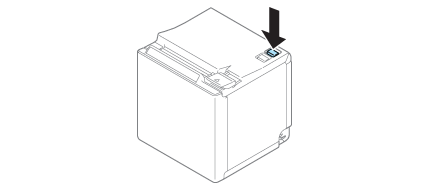
Turn off the printer.
-
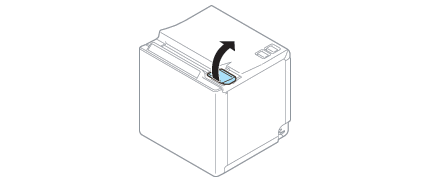
Open the roll paper cover.
-
Clean the thermal elements of the thermal head and the platen roller with a cotton swab moistened with an alcohol solvent (ethanol or IPA).
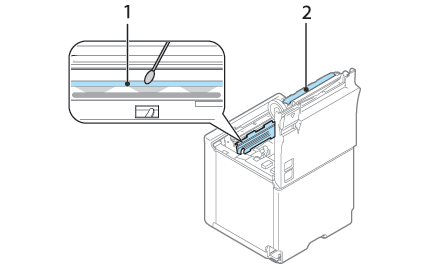
1. Thermal head
2. Platen roller
Before Using the Printer
Part Names
Setup
Basic Operations
Cleaning
Troubleshooting
Appendix
Top > Cleaning > Cleaning the Thermal Head and the Platen Roller
Cleaning the Thermal Head and the Platen Roller
Epson recommends cleaning the thermal head to maintain receipt print quality. We recommend cleaning periodically (about once every 3 months).
Depending on the roll paper used, paper dust may stick to the platen roller and the paper may not be fed correctly. To remove the paper dust, clean the platen roller with a cotton swab moistened with water. Turn on the product power only after the water has completely dried.
CAUTION:
-
After printing, the thermal head and its surroundings can be very hot. Be careful not to touch it and to let it cool before you clean it.
-
Do not damage the thermal head by touching it with your fingers or any hard object.
-
Turn off the printer.
-
Open the roll paper cover.
-
Clean the thermal elements of the thermal head and the platen roller with a cotton swab moistened with an alcohol solvent (ethanol or IPA).
1. Thermal head
2. Platen roller