Language
Epson

TM-m10

User's Manual

Epson

TM-m10

User's Manual

Before Using the Printer

Important Safety InformationProduct Information PageChecking Items Included with the Printer

Part Names

Part Names

Setup

Checking/Changing the Installation DirectionConnecting CablesConnecting Smart DevicesAttaching the Power Switch Cover

Basic Operations

Turning the Power On/OffRemoving/Attaching the Covers (Rear and Bottom)Feeding the Roll PaperInstalling or Replacing the Roll Paper

Cleaning

Cleaning the Printer CaseCleaning the Thermal Head and the Platen Roller

Troubleshooting

Cannot PrintLED Panel Lights are On/Flashing/OffWhen the Roll Paper JamsThe Roll Paper Cover Does not Open

Appendix

SpecificationsRestriction of UseCAUTIONSTrademarks

Top > Troubleshooting > The Roll Paper Cover Does not Open

The Roll Paper Cover Does not Open

If a foreign substance has entered the autocutter or the roll paper jams, the autocutter blade cannot return to the correct position and it locks in place. In this situation, the roll paper cover does not open even if you pull the cover open lever.

Follow the steps below to return the autocutter blade to its normal position.

  1. Turn off the printer.

  2. Remove the rear cover.
    Removing the covers

  3. Turn the knob in the direction indicated by the arrow until the roll paper cover opens.
    Doing so returns the autocutter blade to its normal position.

  4. Reattach the cover.
    Attaching the covers
  • Back
  • Top
  • Next

Before Using the Printer

Important Safety InformationProduct Information PageChecking Items Included with the Printer

Part Names

Part Names

Setup

Checking/Changing the Installation DirectionConnecting CablesConnecting Smart DevicesAttaching the Power Switch Cover

Basic Operations

Turning the Power On/OffRemoving/Attaching the Covers (Rear and Bottom)Feeding the Roll PaperInstalling or Replacing the Roll Paper

Cleaning

Cleaning the Printer CaseCleaning the Thermal Head and the Platen Roller

Troubleshooting

Cannot PrintLED Panel Lights are On/Flashing/OffWhen the Roll Paper JamsThe Roll Paper Cover Does not Open

Appendix

SpecificationsRestriction of UseCAUTIONSTrademarks

Top > Troubleshooting > The Roll Paper Cover Does not Open

The Roll Paper Cover Does not Open

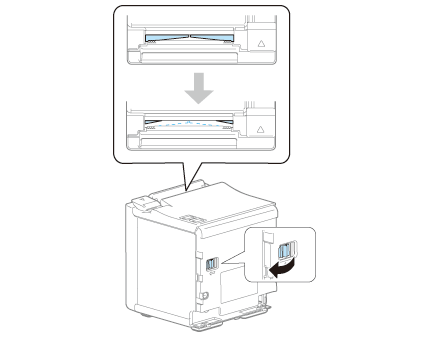
If a foreign substance has entered the autocutter or the roll paper jams, the autocutter blade cannot return to the correct position and it locks in place. In this situation, the roll paper cover does not open even if you pull the cover open lever.

Follow the steps below to return the autocutter blade to its normal position.

  1. Turn off the printer.

  2. Remove the rear cover.
    Removing the covers

  3. Turn the knob in the direction indicated by the arrow until the roll paper cover opens.
    Doing so returns the autocutter blade to its normal position.

  4. Reattach the cover.
    Attaching the covers
  • Back
  • Top
  • Next

©Seiko Epson Corporation 2015-2019 (M00092007 EN)

Language selection

  • English
  • Français
  • Deutsch
  • Nederlands
  • Italiano
  • Español
  • Português
  • Türkçe
  • Ελληνικά
  • Slovenščina
  • Hrvatski
  • Dansk
  • Suomi
  • Norsk
  • Svenska
  • Polski
  • Česky
  • Magyar
  • Slovenčina
  • Română
  • Български
  • Latviešu
  • Lietuvių
  • Eesti
  • Русский
  • Қазақ
  • العربية
  • Bahasa Indonesia
  • ภาษาไทย
  • Tiếng Việt
  • 繁體中文
  • 日本語