
Before Using the Printer
Product Models and Supported Interfaces
Part Names
Setup
Basic Operations
Cleaning
Troubleshooting
Appendix
Top > Part Names > Connectors
Connectors
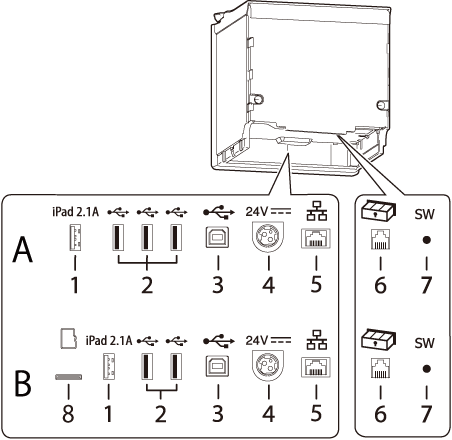
The connectors are located on the back side of the printer.
Interface types and the number of connectors vary by the printer model.  List of Printer Interfaces
A: Printer models that are not equipped with a microSD card slot
B: Printer models that are equipped with a microSD card slot
|
1 |
USB connector (USB-A - Device Charging) Color of the USB connector: white |
Connects a USB cable for connecting to a tablet computer. |
|
2 |
USB connector (Type-A) Color of the USB connector: black |
For connecting a peripheral device such as a wireless LAN unit, customer display, or handheld scanner. |
|
3 |
USB connector (Type-B) |
Connects the USB cable for connecting to computers. |
|
4 |
Power supply connector |
Connects the DC cable for the AC adapter. |
|
5 |
Ethernet connector |
Connects the 10BASE-T/100BASE-TX LAN cable. |
|
6 |
Drawer kick connector |
Connects the modular cable for the cash drawer. |
|
7 |
Status sheet button |
Use this button to print a status sheet on interfaces or initialize the settings on interfaces. |
|
8 |
microSD card slot |
For a special purpose and cannot be used for daily use. For more details, contact qualified service personnel. |
 CAUTION:
-
When connecting a peripheral device such as an optional wireless LAN unit, customer display, or handheld scanner, connect it using the USB connector (Type-A).
-
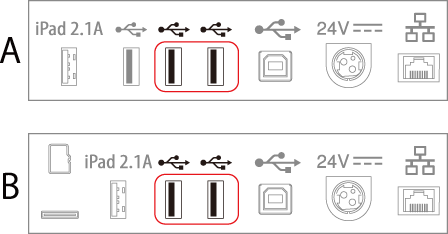
When connecting a wireless LAN unit, use one of the connectors shown in the following illustration.
A: Printer models that are not equipped with a microSD card slot
B: Printer models that are equipped with a microSD card slot
-
When a tablet computer is connected to the USB connector (USB-A - Device Charging), the Bluetooth function of the printer is disabled. To use the Bluetooth function keeping the tablet connected to the connector, disable the USB data communication. For more details, see the Technical Reference Guide.
Before Using the Printer
Product Models and Supported Interfaces
Part Names
Setup
Basic Operations
Cleaning
Troubleshooting
Appendix
Top > Part Names > Connectors
Connectors
The connectors are located on the back side of the printer.
Interface types and the number of connectors vary by the printer model. List of Printer Interfaces
A: Printer models that are not equipped with a microSD card slot
B: Printer models that are equipped with a microSD card slot
|
1 |
USB connector (USB-A - Device Charging) Color of the USB connector: white |
Connects a USB cable for connecting to a tablet computer. |
|
2 |
USB connector (Type-A) Color of the USB connector: black |
For connecting a peripheral device such as a wireless LAN unit, customer display, or handheld scanner. |
|
3 |
USB connector (Type-B) |
Connects the USB cable for connecting to computers. |
|
4 |
Power supply connector |
Connects the DC cable for the AC adapter. |
|
5 |
Ethernet connector |
Connects the 10BASE-T/100BASE-TX LAN cable. |
|
6 |
Drawer kick connector |
Connects the modular cable for the cash drawer. |
|
7 |
Status sheet button |
Use this button to print a status sheet on interfaces or initialize the settings on interfaces. |
|
8 |
microSD card slot |
For a special purpose and cannot be used for daily use. For more details, contact qualified service personnel. |
CAUTION:-
When connecting a peripheral device such as an optional wireless LAN unit, customer display, or handheld scanner, connect it using the USB connector (Type-A).
-
When connecting a wireless LAN unit, use one of the connectors shown in the following illustration.
A: Printer models that are not equipped with a microSD card slot
B: Printer models that are equipped with a microSD card slot
-
When a tablet computer is connected to the USB connector (USB-A - Device Charging), the Bluetooth function of the printer is disabled. To use the Bluetooth function keeping the tablet connected to the connector, disable the USB data communication. For more details, see the Technical Reference Guide.