Language
Epson

TM-P80II Auto Cutter Model

User's Manual

Epson

TM-P80II Auto Cutter Model

User's Manual

Troubleshoot
Troubleshooting

Before Using the Printer

Important Safety InformationManuals for This ProductProduct Information PageChecking Items Included with the Printer

Part Names

BodyOperation panel

Basic Operations

Placing or Hanging the PrinterInstalling the BatteryCharging the BatteryTurning the Power On/OffOpening/Closing the Roll Paper CoverInstalling or Replacing the Roll PaperAnti-Curl Function

Setup

Connecting to Smart DevicesConnecting to Computers

Cleaning

Cleaning the Printer CaseCleaning the Thermal HeadCleaning the Platen Roller and Paper Detector

Troubleshooting

QR Code LabelMeanings of LED IndicationsWhen the Roll Paper JamsWhen the Roll Paper Cover does Not OpenPrintout is FaintCannot Print

Product Specifications

Product SpecificationsConsumables and Options

Appendix

Restriction of UseCAUTIONSTrademarks

Top > Troubleshooting > When the Roll Paper Jams

When the Roll Paper Jams

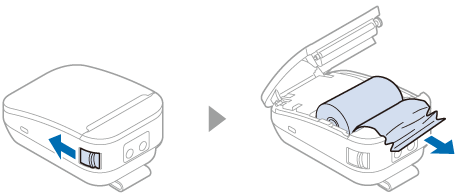
When a paper jam occurs, never pull out the paper with too much force. Open the roll paper cover and remove the jammed paper.

Follow the procedure below to remove jammed paper.

WARNING:

Do not touch the thermal head and its surroundings. They may be hot immediately after printing.

CAUTION:

If you touch paper during printing or before cutting operation is finished, a paper jam or auto cutter error (unable to cut) may occur.

  1. Turn off the printer.

  2. Disconnect the USB cable, if it is connected.

  3. Open the roll paper cover.

  4. Remove the jammed paper.

  5. Install the roll paper and close the roll paper cover.
  • Back
  • Top
  • Next
Troubleshoot
Troubleshooting

Before Using the Printer

Important Safety InformationManuals for This ProductProduct Information PageChecking Items Included with the Printer

Part Names

BodyOperation panel

Basic Operations

Placing or Hanging the PrinterInstalling the BatteryCharging the BatteryTurning the Power On/OffOpening/Closing the Roll Paper CoverInstalling or Replacing the Roll PaperAnti-Curl Function

Setup

Connecting to Smart DevicesConnecting to Computers

Cleaning

Cleaning the Printer CaseCleaning the Thermal HeadCleaning the Platen Roller and Paper Detector

Troubleshooting

QR Code LabelMeanings of LED IndicationsWhen the Roll Paper JamsWhen the Roll Paper Cover does Not OpenPrintout is FaintCannot Print

Product Specifications

Product SpecificationsConsumables and Options

Appendix

Restriction of UseCAUTIONSTrademarks

Top > Troubleshooting > When the Roll Paper Jams

When the Roll Paper Jams

When a paper jam occurs, never pull out the paper with too much force. Open the roll paper cover and remove the jammed paper.

Follow the procedure below to remove jammed paper.

WARNING:

Do not touch the thermal head and its surroundings. They may be hot immediately after printing.

CAUTION:

If you touch paper during printing or before cutting operation is finished, a paper jam or auto cutter error (unable to cut) may occur.

  1. Turn off the printer.

  2. Disconnect the USB cable, if it is connected.

  3. Open the roll paper cover.

  4. Remove the jammed paper.

  5. Install the roll paper and close the roll paper cover.

  • Back
  • Top
  • Next

©Seiko Epson Corporation 2022 (M00148800 EN)

Language selection

  • English
  • Français
  • Deutsch
  • Nederlands
  • Italiano
  • Español
  • Português
  • Türkçe
  • Ελληνικά
  • Slovenščina
  • Hrvatski
  • Македонски
  • Srpski
  • Dansk
  • Suomi
  • Norsk
  • Svenska
  • Polski
  • Česky
  • Magyar
  • Slovenčina
  • Română
  • Български
  • Latviešu
  • Lietuvių
  • Eesti
  • Русский
  • Українська
  • Қазақ
  • العربية
  • 简体中文
  • 日本語