首頁 > 基本操作 > 建立 Label Editor Mobile 用標籤
建立 Label Editor Mobile 用標籤
Label Editor Mobile 應用程式允許您在智慧型裝置上建立並編輯標籤。如果您的印表機與 Label Editor Mobile 相容,您可以將以 Label Editor 建立的標籤傳送至您的智慧型裝置,並使用 Label Editor Mobile 進行列印。

 註: 註:
|
-
在 新增/開啟 視窗或工具列按一下 。
-
選擇「建立 Label Editor Mobile 檔案」核取方塊。
-
選擇使用的印表機和標籤帶。
-
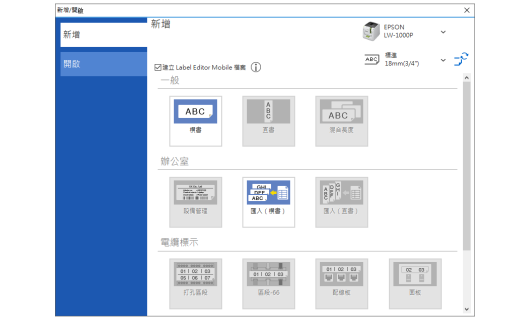
選擇您要建立的標籤類型。
-
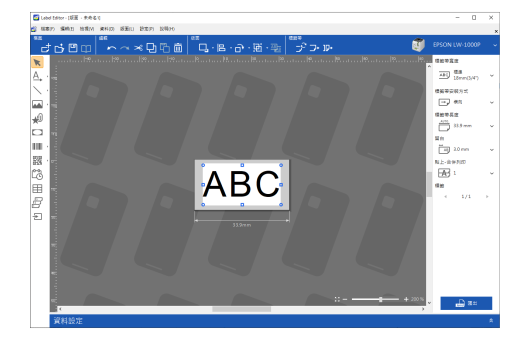
所選標籤類型的範本會顯示。請插入文字和符號等物件。
-
標籤編輯室窗的背景與一般背景不同。
-
Label Editor Mobile 模式中不支援的功能及設定會顯示為灰色且無法選取。
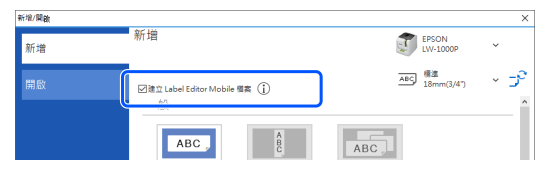
Label Editor 進入專用模式,用於建立 Label Editor Mobile 用標籤。
|
註: Label Editor Mobile 模式中不支援的標籤類型會顯示為灰色且無法選取。 |
|
註: |
傳送標籤資料至您的智慧型裝置
-
按一下視窗右邊的 。
-
指定要儲存的位置和檔案名稱來儲存檔案。檔案會以指定名稱儲存,副檔名為「.lemd」。
-
檔案一旦以副檔名為「.lemd」儲存,即無法再次於 Label Editor 中打開。
如果您想在Label Editor再次打開並編輯檔案,在工具列上按一下 並儲存檔案。(檔案將以「.leb」副檔名儲存。)
-
您可以在檔案選單中按一下「列印」,直接列印檔案。
-
將儲存的檔案傳送至您的智慧型裝置。
-
將智慧型裝置連線至印表機。
-
啟動 Label Editor Mobile。從檔案參考打開傳送的檔案,並輕觸列印按鈕列印檔案。
或是從檔案選單選擇匯出 Label Editor Mobile 檔案。
|
註: 可能顯示「Label Editor Mobile 檔案無法匯出」錯誤訊息。在此情況下,請進行變更,如縮小字體大小或減少區段數等。 |
|
註: |
例如,如果您將檔案儲存至雲端服務,您可以從智慧型裝置打開檔案。
Google Play is a trademark of Google LLC.
App Store is a trademark of Apple Inc., registered in the U.S. and other countries.
首頁 > 基本操作 > 建立 Label Editor Mobile 用標籤
建立 Label Editor Mobile 用標籤
Label Editor Mobile 應用程式允許您在智慧型裝置上建立並編輯標籤。如果您的印表機與 Label Editor Mobile 相容,您可以將以 Label Editor 建立的標籤傳送至您的智慧型裝置,並使用 Label Editor Mobile 進行列印。
註:
|
-
在 新增/開啟 視窗或工具列按一下 。
-
選擇「建立 Label Editor Mobile 檔案」核取方塊。
-
選擇使用的印表機和標籤帶。
-
選擇您要建立的標籤類型。
-
所選標籤類型的範本會顯示。請插入文字和符號等物件。
-
標籤編輯室窗的背景與一般背景不同。
-
Label Editor Mobile 模式中不支援的功能及設定會顯示為灰色且無法選取。
Label Editor 進入專用模式,用於建立 Label Editor Mobile 用標籤。
|
註: Label Editor Mobile 模式中不支援的標籤類型會顯示為灰色且無法選取。 |
|
註: |
傳送標籤資料至您的智慧型裝置
-
按一下視窗右邊的 。
-
指定要儲存的位置和檔案名稱來儲存檔案。檔案會以指定名稱儲存,副檔名為「.lemd」。
-
檔案一旦以副檔名為「.lemd」儲存,即無法再次於 Label Editor 中打開。
如果您想在Label Editor再次打開並編輯檔案,在工具列上按一下 並儲存檔案。(檔案將以「.leb」副檔名儲存。)
-
您可以在檔案選單中按一下「列印」,直接列印檔案。
-
將儲存的檔案傳送至您的智慧型裝置。
-
將智慧型裝置連線至印表機。
-
啟動 Label Editor Mobile。從檔案參考打開傳送的檔案,並輕觸列印按鈕列印檔案。
或是從檔案選單選擇匯出 Label Editor Mobile 檔案。
|
註: 可能顯示「Label Editor Mobile 檔案無法匯出」錯誤訊息。在此情況下,請進行變更,如縮小字體大小或減少區段數等。 |
|
註: |
例如,如果您將檔案儲存至雲端服務,您可以從智慧型裝置打開檔案。
Google Play is a trademark of Google LLC.
App Store is a trademark of Apple Inc., registered in the U.S. and other countries.