
Before Using the Printer
Part Names
Basic Operations
Setup
Cleaning
Troubleshooting
Product Specifications
Appendix
Top > Basic Operations > Placing or Hanging the Printer
Placing or Hanging the Printer
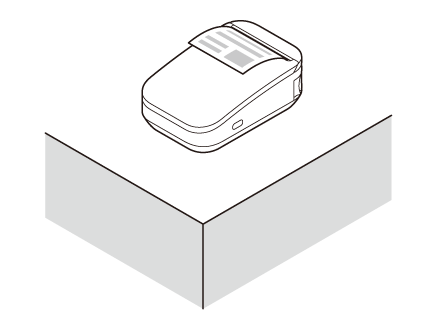
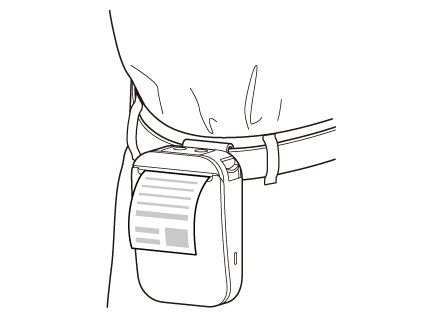
The printer can be placed on a horizontal surface such as a desk or hung vertically from your belt using the belt clip of the printer.
-
Placing the Printer on a Flat Surface
-
Hanging the Printer
Placing the Printer on a Flat Surface
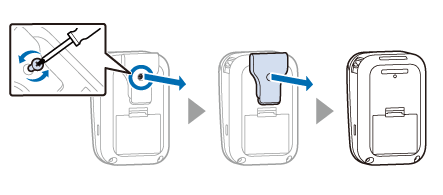
When using the printer on a flat surface, it is recommended to remove the belt clip from the printer.
Remove the belt clip as shown below.
 CAUTION:
Do not repeatedly attach and detach the belt clip. The screw hole may be damaged and the belt clip may not be securely fastened.
Hanging the Printer
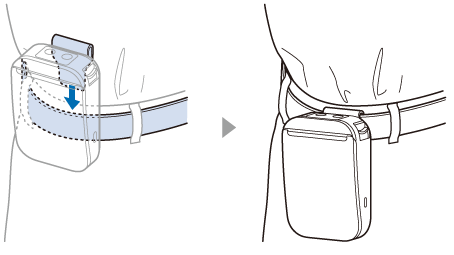
By attaching the belt clip to your belt, you can hang the printer from your waist.
Hang the printer vertically with its operation panel facing up.
CAUTION:-
Before use, make sure that the belt clip is securely fastened to the printer and that it is not loose. Looseness may cause the printer to drop, resulting in injury or accident.
-
Be careful not to drop the printer when hanging it with the belt clip.
Before Using the Printer
Part Names
Basic Operations
Setup
Cleaning
Troubleshooting
Product Specifications
Appendix
Top > Basic Operations > Placing or Hanging the Printer
Placing or Hanging the Printer
The printer can be placed on a horizontal surface such as a desk or hung vertically from your belt using the belt clip of the printer.
-
Placing the Printer on a Flat Surface
-
Hanging the Printer
Placing the Printer on a Flat Surface
When using the printer on a flat surface, it is recommended to remove the belt clip from the printer.
Remove the belt clip as shown below.
CAUTION:Do not repeatedly attach and detach the belt clip. The screw hole may be damaged and the belt clip may not be securely fastened.
Hanging the Printer
By attaching the belt clip to your belt, you can hang the printer from your waist.
Hang the printer vertically with its operation panel facing up.
CAUTION:-
Before use, make sure that the belt clip is securely fastened to the printer and that it is not loose. Looseness may cause the printer to drop, resulting in injury or accident.
-
Be careful not to drop the printer when hanging it with the belt clip.