Language
Epson

TM-m30II-SL

User's Manual

Epson

TM-m30II-SL

User's Manual

Troubleshoot
Troubleshooting

Before Using the Printer

Important Safety InformationProduct Information PageChecking Items Included with the Printer

Part Names

FrontBottomConnectors

Setup of the Tablet

Tablets that Can be Mounted to the PrinterFront tabletRear displayPreparation for SetupMounting the Front TabletConnecting Peripheral DevicesConnecting the AC CableAttaching the Lock Lever CoverReplacing the Tablet Table

Setup of the Printer

Placing the PrinterChanging the Paper WidthConnecting Peripheral DevicesUsing the Power Switch CoverConnecting Smart Devices

Basic Operations

Turning the Power On/OffInstalling or Replacing the Roll PaperHow to Hold the PrinterTransporting the Printer

Cleaning

Cleaning the Printer CaseCleaning the Thermal Head and the Platen Roller

Troubleshooting

Meanings of LED IndicationsPrintout is FaintCannot PrintWhen the Roll Paper JamsWhen Sending for Repair

Using the Optional Products

OT-DM30SL (Customer Display)OT-WH30SL (Wall Hanging Bracket Set)

Appendix

SpecificationsOptional KitsRestriction of UseCAUTIONSTrademarks

Top > Part Names > Front

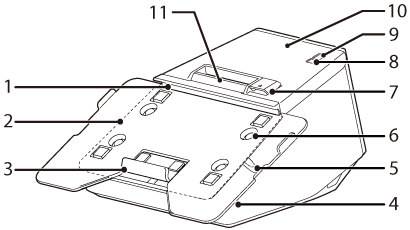
Front

1

Upper tablet holder

Holds the upper side of a tablet.

2

Tablet table (standard)

Place a tablet on this table.

3

Lower tablet holder

Holds the lower side of a tablet.

4

Security slot

Use here to attach an anti-theft tool such as a wire. This slot is provided on both sides of the printer.

5

Lock lever

Operate this lever to secure a tablet.

6

Screw

The screws are securing the tablet table.

7

Cover open lever

Operate this lever to open the roll paper cover.

8

Feed button

Press this button once to feed the roll paper for one line. Hold down this button to continue feeding the roll paper.

9

Power switch

This switch turns the printer on or off.

10

Roll paper cover

Open this cover when installing or replacing the roll paper.

11

Panel LED

Power LED: This turns on when the printer is on.

Error LED:
On: Indicates that printing is temporarily unavailable when an error has occurred such as there is no roll paper installed or the roll paper cover is open.
Flashing: Indicates an error such as a power failure. To clear this type of error, you need to turn the printer off and then back on.

Paper LED: On indicates a paper out.

Wi-Fi LED:
On: Indicates that the printer is connected to Wi-Fi.
Flashing: Indicates that communication is temporarily disabled because an IP address has not been acquired or for other reason.
Off: Indicates that the printer is not connected to Wi-Fi. This LED also stays off while the printer is connected to a wired LAN.

Ethernet LED:
On: Indicates that the printer is connected to Ethernet.
Flashing: Indicates that communication is temporarily disabled because an IP address has not been acquired or for other reason.
Off: Indicates that the printer is not connected to Ethernet. This LED also stays off while the printer is connected to a Wi-Fi.

Bluetooth LED:
On: Indicates that the printer is connected via Bluetooth.
Flashing: Indicates that the printer is waiting to be paired with another device.
Off: Indicates that the printer is not connected via Bluetooth.

  • Back
  • Top
  • Next
Troubleshoot
Troubleshooting

Before Using the Printer

Important Safety InformationProduct Information PageChecking Items Included with the Printer

Part Names

FrontBottomConnectors

Setup of the Tablet

Tablets that Can be Mounted to the PrinterFront tabletRear displayPreparation for SetupMounting the Front TabletConnecting Peripheral DevicesConnecting the AC CableAttaching the Lock Lever CoverReplacing the Tablet Table

Setup of the Printer

Placing the PrinterChanging the Paper WidthConnecting Peripheral DevicesUsing the Power Switch CoverConnecting Smart Devices

Basic Operations

Turning the Power On/OffInstalling or Replacing the Roll PaperHow to Hold the PrinterTransporting the Printer

Cleaning

Cleaning the Printer CaseCleaning the Thermal Head and the Platen Roller

Troubleshooting

Meanings of LED IndicationsPrintout is FaintCannot PrintWhen the Roll Paper JamsWhen Sending for Repair

Using the Optional Products

OT-DM30SL (Customer Display)OT-WH30SL (Wall Hanging Bracket Set)

Appendix

SpecificationsOptional KitsRestriction of UseCAUTIONSTrademarks

Top > Part Names > Front

Front

1

Upper tablet holder

Holds the upper side of a tablet.

2

Tablet table (standard)

Place a tablet on this table.

3

Lower tablet holder

Holds the lower side of a tablet.

4

Security slot

Use here to attach an anti-theft tool such as a wire. This slot is provided on both sides of the printer.

5

Lock lever

Operate this lever to secure a tablet.

6

Screw

The screws are securing the tablet table.

7

Cover open lever

Operate this lever to open the roll paper cover.

8

Feed button

Press this button once to feed the roll paper for one line. Hold down this button to continue feeding the roll paper.

9

Power switch

This switch turns the printer on or off.

10

Roll paper cover

Open this cover when installing or replacing the roll paper.

11

Panel LED

Power LED: This turns on when the printer is on.

Error LED:
On: Indicates that printing is temporarily unavailable when an error has occurred such as there is no roll paper installed or the roll paper cover is open.
Flashing: Indicates an error such as a power failure. To clear this type of error, you need to turn the printer off and then back on.

Paper LED: On indicates a paper out.

Wi-Fi LED:
On: Indicates that the printer is connected to Wi-Fi.
Flashing: Indicates that communication is temporarily disabled because an IP address has not been acquired or for other reason.
Off: Indicates that the printer is not connected to Wi-Fi. This LED also stays off while the printer is connected to a wired LAN.

Ethernet LED:
On: Indicates that the printer is connected to Ethernet.
Flashing: Indicates that communication is temporarily disabled because an IP address has not been acquired or for other reason.
Off: Indicates that the printer is not connected to Ethernet. This LED also stays off while the printer is connected to a Wi-Fi.

Bluetooth LED:
On: Indicates that the printer is connected via Bluetooth.
Flashing: Indicates that the printer is waiting to be paired with another device.
Off: Indicates that the printer is not connected via Bluetooth.

  • Back
  • Top
  • Next

©Seiko Epson Corporation 2021 (M00135700  EN)

Language selection

  • English
  • Français
  • Deutsch
  • Nederlands
  • Italiano
  • Español
  • Português
  • Türkçe
  • Ελληνικά
  • Slovenščina
  • Hrvatski
  • Македонски
  • Srpski
  • Dansk
  • Suomi
  • Norsk
  • Svenska
  • Polski
  • Česky
  • Magyar
  • Slovenčina
  • Română
  • Български
  • Latviešu
  • Lietuvių
  • Eesti
  • العربية
  • Bahasa Indonesia
  • ภาษาไทย
  • 日本語