Language
Epson

TM-m30II-SL

User's Manual

Epson

TM-m30II-SL

User's Manual

Troubleshoot
Troubleshooting

Before Using the Printer

Important Safety InformationProduct Information PageChecking Items Included with the Printer

Part Names

FrontBottomConnectors

Setup of the Tablet

Tablets that Can be Mounted to the PrinterFront tabletRear displayPreparation for SetupMounting the Front TabletConnecting Peripheral DevicesConnecting the AC CableAttaching the Lock Lever CoverReplacing the Tablet Table

Setup of the Printer

Placing the PrinterChanging the Paper WidthConnecting Peripheral DevicesUsing the Power Switch CoverConnecting Smart Devices

Basic Operations

Turning the Power On/OffInstalling or Replacing the Roll PaperHow to Hold the PrinterTransporting the Printer

Cleaning

Cleaning the Printer CaseCleaning the Thermal Head and the Platen Roller

Troubleshooting

Meanings of LED IndicationsPrintout is FaintCannot PrintWhen the Roll Paper JamsWhen Sending for Repair

Using the Optional Products

OT-DM30SL (Customer Display)OT-WH30SL (Wall Hanging Bracket Set)

Appendix

SpecificationsOptional KitsRestriction of UseCAUTIONSTrademarks

Top > Setup of the Tablet > Mounting the Front Tablet

Mounting the Front Tablet

Follow the procedure below to mount the front tablet to the printer.

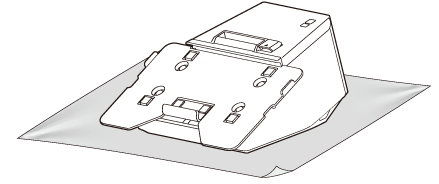
  1. Put the printer on a soft cloth or cushioning material.

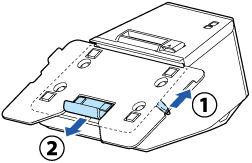
  2. Operate the lock lever to extend the lower tablet holder.

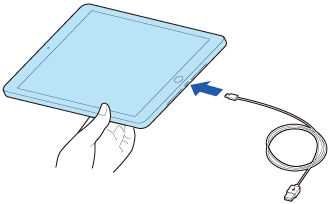
  3. Connect the cable to the front tablet.

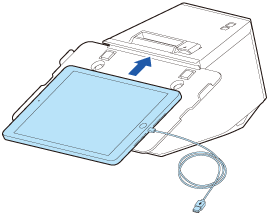
  4. Place the tablet so that its upper edge contacts with the upper tablet holder.

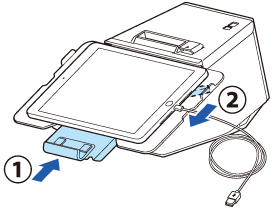
  5. Move the lower tablet holder up to sandwich the tablet between the two holders, and then operate the lock lever to secure the tablet.

  6. CAUTION:

    If the tablet sticks out from the tablet table, replace the tablet table with the large one.

    Replacing the Tablet Table

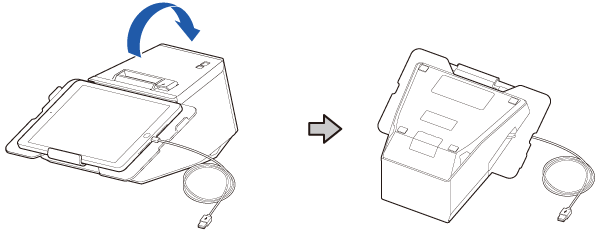
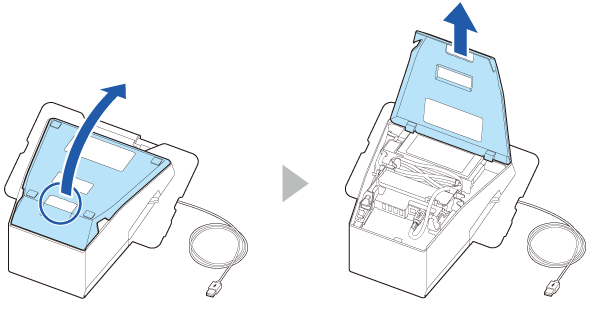
  7. Turn over the printer.

  8. Remove the bottom cover.

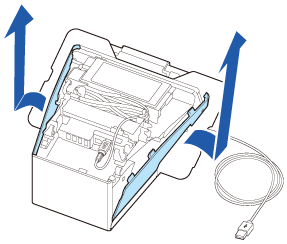
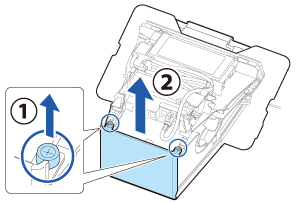
  9. Remove the side covers.

  10. Remove the rear cover.

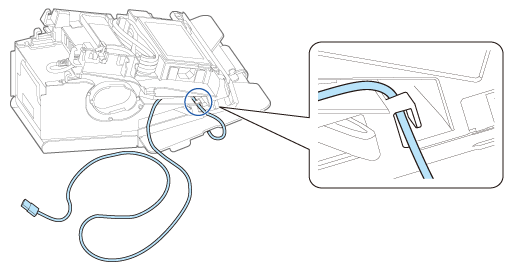
  11. Pass the cable through the hook on the side.

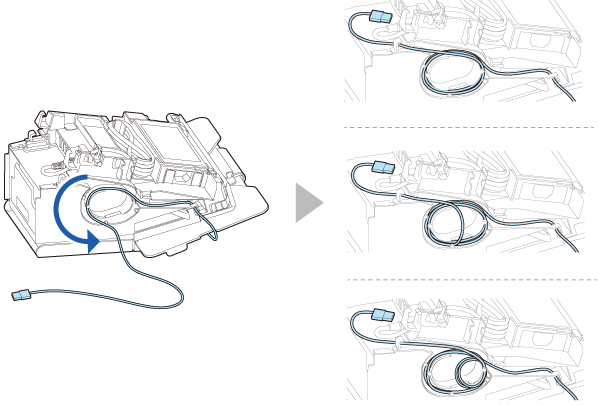
  12. Roll up the cable on the side as shown below to adjust the cable length.

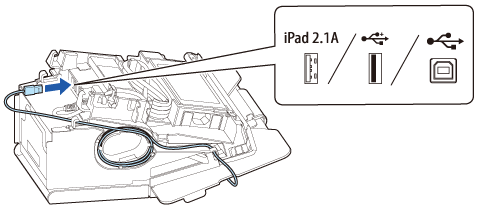
  13. Connect the cable to the appropriate USB connector.
  14. Note:

    If your tablet is not allowed to connect to the connector of the printer, pull its cable out through the cutout of the printer.

  • Back
  • Top
  • Next
Troubleshoot
Troubleshooting

Before Using the Printer

Important Safety InformationProduct Information PageChecking Items Included with the Printer

Part Names

FrontBottomConnectors

Setup of the Tablet

Tablets that Can be Mounted to the PrinterFront tabletRear displayPreparation for SetupMounting the Front TabletConnecting Peripheral DevicesConnecting the AC CableAttaching the Lock Lever CoverReplacing the Tablet Table

Setup of the Printer

Placing the PrinterChanging the Paper WidthConnecting Peripheral DevicesUsing the Power Switch CoverConnecting Smart Devices

Basic Operations

Turning the Power On/OffInstalling or Replacing the Roll PaperHow to Hold the PrinterTransporting the Printer

Cleaning

Cleaning the Printer CaseCleaning the Thermal Head and the Platen Roller

Troubleshooting

Meanings of LED IndicationsPrintout is FaintCannot PrintWhen the Roll Paper JamsWhen Sending for Repair

Using the Optional Products

OT-DM30SL (Customer Display)OT-WH30SL (Wall Hanging Bracket Set)

Appendix

SpecificationsOptional KitsRestriction of UseCAUTIONSTrademarks

Top > Setup of the Tablet > Mounting the Front Tablet

Mounting the Front Tablet

Follow the procedure below to mount the front tablet to the printer.

  1. Put the printer on a soft cloth or cushioning material.

  2. Operate the lock lever to extend the lower tablet holder.

  3. Connect the cable to the front tablet.

  4. Place the tablet so that its upper edge contacts with the upper tablet holder.

  5. Move the lower tablet holder up to sandwich the tablet between the two holders, and then operate the lock lever to secure the tablet.

  6. CAUTION:

    If the tablet sticks out from the tablet table, replace the tablet table with the large one.

    Replacing the Tablet Table

  7. Turn over the printer.

  8. Remove the bottom cover.

  9. Remove the side covers.

  10. Remove the rear cover.

  11. Pass the cable through the hook on the side.

  12. Roll up the cable on the side as shown below to adjust the cable length.

  13. Connect the cable to the appropriate USB connector.
  14. Note:

    If your tablet is not allowed to connect to the connector of the printer, pull its cable out through the cutout of the printer.

  • Back
  • Top
  • Next

©Seiko Epson Corporation 2021 (M00135700  EN)

Language selection

  • English
  • Français
  • Deutsch
  • Nederlands
  • Italiano
  • Español
  • Português
  • Türkçe
  • Ελληνικά
  • Slovenščina
  • Hrvatski
  • Македонски
  • Srpski
  • Dansk
  • Suomi
  • Norsk
  • Svenska
  • Polski
  • Česky
  • Magyar
  • Slovenčina
  • Română
  • Български
  • Latviešu
  • Lietuvių
  • Eesti
  • العربية
  • Bahasa Indonesia
  • ภาษาไทย
  • 日本語