
Before Using the Printer
Part Names
Setup of the Tablet
Setup of the Printer
Basic Operations
Cleaning
Troubleshooting
Using the Optional Products
Appendix
Top > Setup of the Printer > Connecting Peripheral Devices
Connecting Peripheral Devices
Connect an interface cable of a peripheral device to the connector inside the printer.
-
Turn off the printer.
-
Disconnect the AC cable from the power outlet.
-
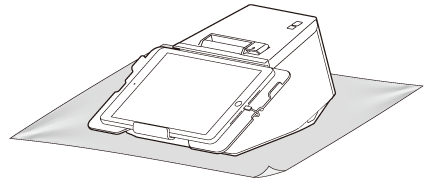
Put the printer on a soft cloth or cushioning material.
-
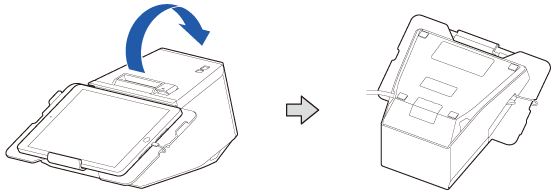
Turn over the printer.
-
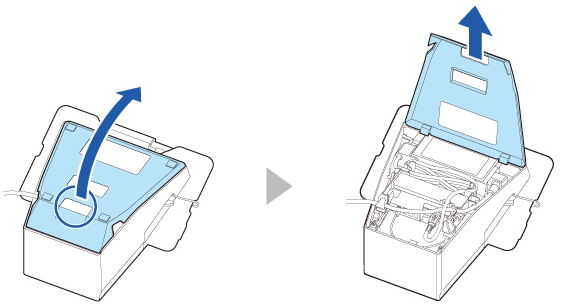
Remove the bottom cover.
-
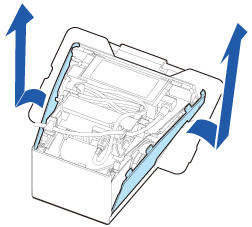
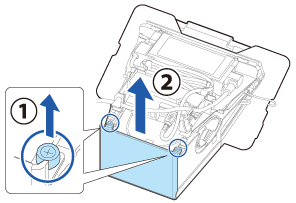
Remove the side covers.
-
Remove the rear cover.
-
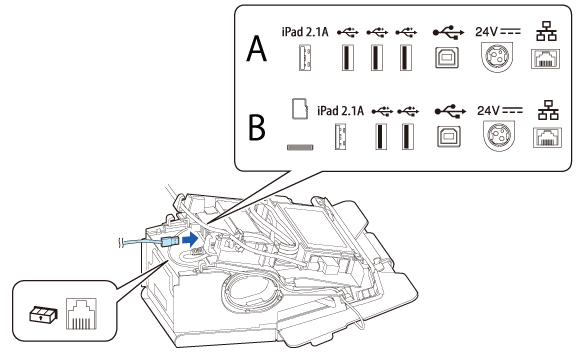
Connect an interface cable to the connector inside the printer.
-
Pass the interface cable through the hook.
-
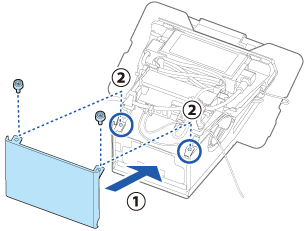
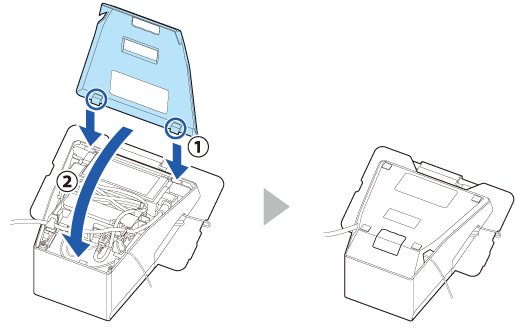
Attach the rear cover.
-
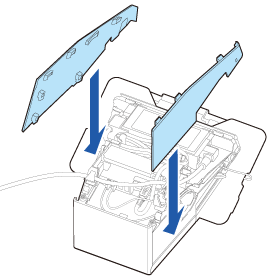
Attach the side covers.
-
Attach the bottom cover.
-
Connect the interface cable to the device.
-
Connect the AC cable to a power outlet.
For information on which connector is which type, see Connectors.
A: Printer models without a microSD card slot
B: Printer models with a microSD card slot
This step is not necessary when pulling the cable out from the rear or bottom of the printer.
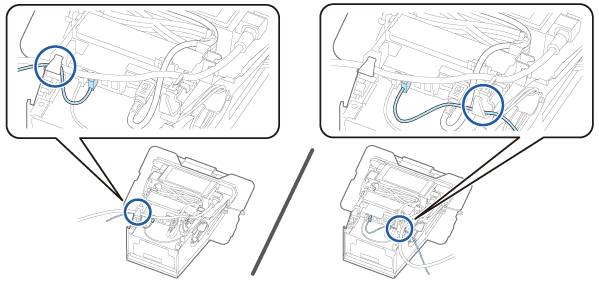
Pull the cable out through the left, right, bottom, or rear of the bottom cover.
 WARNING:
-
Never insert the AC cable plug into a socket that does not meet the input voltage of the AC adapter. Doing so may result in damage to the printer.
-
Should a fault ever occur, immediately turn off the power to the printer and unplug the AC cable from the socket.
Before Using the Printer
Part Names
Setup of the Tablet
Setup of the Printer
Basic Operations
Cleaning
Troubleshooting
Using the Optional Products
Appendix
Top > Setup of the Printer > Connecting Peripheral Devices
Connecting Peripheral Devices
Connect an interface cable of a peripheral device to the connector inside the printer.
-
Turn off the printer.
-
Disconnect the AC cable from the power outlet.
-
Put the printer on a soft cloth or cushioning material.
-
Turn over the printer.
-
Remove the bottom cover.
-
Remove the side covers.
-
Remove the rear cover.
-
Connect an interface cable to the connector inside the printer.
-
Pass the interface cable through the hook.
-
Attach the rear cover.
-
Attach the side covers.
-
Attach the bottom cover.
-
Connect the interface cable to the device.
-
Connect the AC cable to a power outlet.
For information on which connector is which type, see Connectors.
A: Printer models without a microSD card slot
B: Printer models with a microSD card slot
This step is not necessary when pulling the cable out from the rear or bottom of the printer.
Pull the cable out through the left, right, bottom, or rear of the bottom cover.
WARNING:-
Never insert the AC cable plug into a socket that does not meet the input voltage of the AC adapter. Doing so may result in damage to the printer.
-
Should a fault ever occur, immediately turn off the power to the printer and unplug the AC cable from the socket.