-
-
-
-
-
-
Network Service and Software Information
-
Application for Scanning Documents and Images (Epson Scan 2)
-
Application for Configuring Scanning Operations from the Control Panel (Epson Event Manager)
-
Application for Quick and Fun Printing from a Computer (Epson Photo+)
-
Application for Easily Operating the Printer from a Smart device (Epson Smart Panel)
-
Application for Updating Software and Firmware (EPSON Software Updater)
-
-
-
Scanning to the Cloud
You can send scanned images to cloud services. Before using this feature, make settings using Epson Connect. See the following Epson Connect portal website for details.
http://www.epsonconnect.eu (Europe only)
You cannot save multiple originals as one PDF file when scanning from the control panel. By using Epson Scan 2 and setting Add or edit pages after scanning on the Document Mode, you can scan additional originals after you scanned the original, and then save as one file.
-
Make sure that you have made settings using Epson Connect.
-
Place the originals.
-
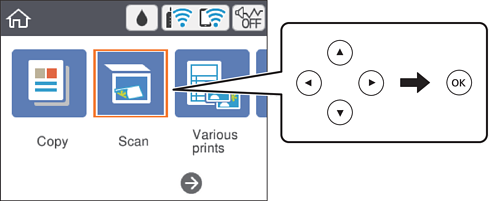
Select Scan on the home screen.
To select an item, use the


 buttons, and then press the
OK button.
buttons, and then press the
OK button.
-
Select Cloud.
-
Select
 on the top of the screen, and then select a destination.
-
Set items on Scan tab, such as the save format.
-
B&W/Color: Select whether to scan in color or in monochrome.
-
JPEG/PDF: Select the format in which to save the scanned image.
-
-
Select Advanced Settings tab, and then check settings, and change them if necessary.
-
Select Scan tab, and then press the
 button.
Note:
button.
Note:The color, size, and border of the scanned image will not be exactly the same as the original.
