-
-
-
-
-
-
Network Service and Software Information
-
Application for Scanning Documents and Images (Epson Scan 2)
-
Application for Configuring Scanning Operations from the Control Panel (Epson Event Manager)
-
Application for Quick and Fun Printing from a Computer (Epson Photo+)
-
Application for Easily Operating the Printer from a Smart device (Epson Smart Panel)
-
Application for Updating Software and Firmware (EPSON Software Updater)
-
-
-
Copying Basics
This section explains the steps for copying from the Copy menu on the control panel.
-
Load paper in the printer.
-
Place the originals.
-
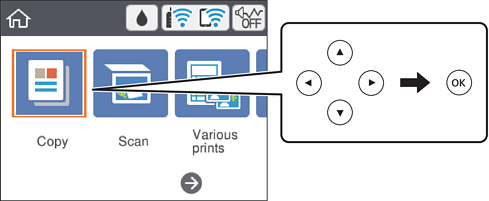
Select Copy on the home screen.
To select an item, use the


 buttons, and then press the
OK button.
buttons, and then press the
OK button.
-
Make the settings on the Copy tab.
-
B&W/Color: Select color copy or monochrome copy.
-
 (2-Sided Copying): When making 2-sided copies, select the item, select 1→2-Sided, and then make settings for Original Orientation and Binding Margin. Select Done to confirm.
-
 (Density): Select the item to make settings for copy density. Press the + button to increase the density, and press the - button to decrease the density. Select Done to confirm.
-
-
Select the Advanced Settings tab, and then change the settings as necessary.
-
Select the Copy tab, and then set the number of copies.
-
Press the
 button.
Note:
button.
Note:The color, size, and border of the copied image are slightly different from the original.
