Language
Epson

DM-D70

User's Manual

Epson

DM-D70

User's Manual

Before Using the Product

Important Safety InformationProduct Information PageChecking Items Included with the Customer DisplayOptional KitsFerrite Core

Part Names

Part Names

Setup

Connecting to the PrinterConnecting to the ComputerRouting the USB Cable

Basic Operations

Turning the Power On/OffChanging the Angle of the Display UnitAdjusting the Display Brightness

Installing the Product in Various Ways

Changing the Display Orientation to PortraitAttaching the Display to a VESA MountAttaching the EXTENSION POLE UNIT FOR DM-D70 (DP-70)Attaching the CRANK POLE UNIT FOR TM-T88VI-DT2 (DP-71)

Cleaning

Cleaning the Outer Case

Troubleshooting

Nothing is Displayed on the ScreenThe Screen Looks Dark when the Display is Attached in Portrait Orientation

Appendix

Product SpecificationsWARNINGRestriction of UseCAUTIONSTrademarks

Top > Installing the Product in Various Ways > Changing the Display Orientation to Portrait

Changing the Display Orientation to Portrait

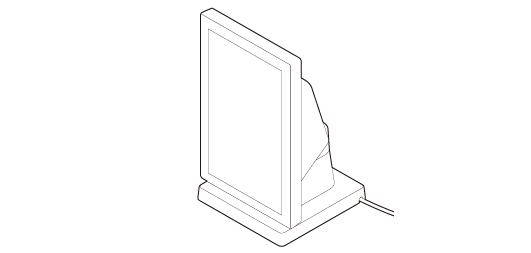
Follow the procedure below to change the display orientation to portrait.
Note:

Change the display orientation to portrait if your application software supports portrait display.

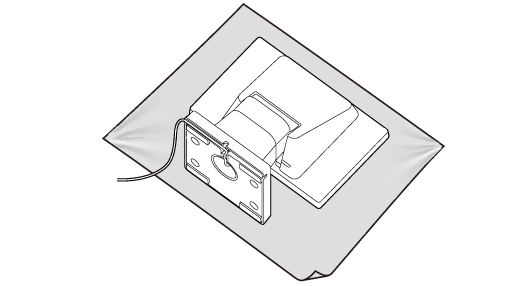
  1. Place the product screen-side down on a soft cloth or the like.

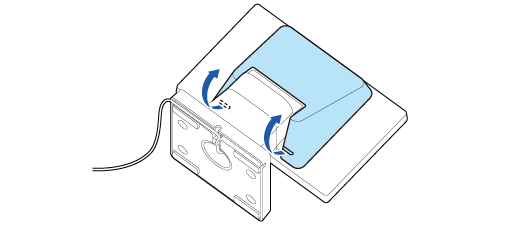
  2. Remove the rear cover.

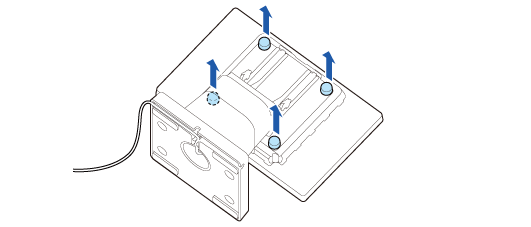
  3. Remove the four screws.

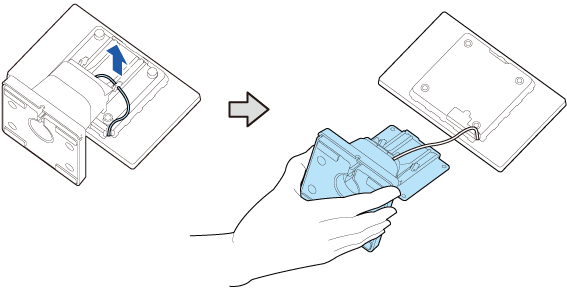
  4. Release the USB cable from the notch, and then remove the stand.

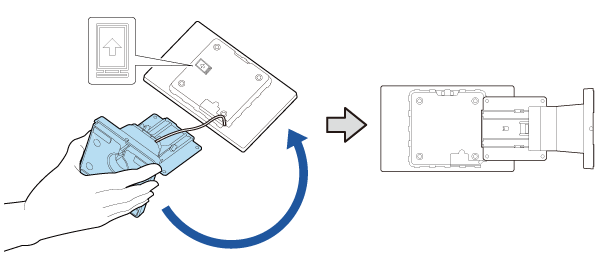
  5. Change orientation of the stand referring to the mark on the rear of the display.

  6. Secure the stand with the four screws.

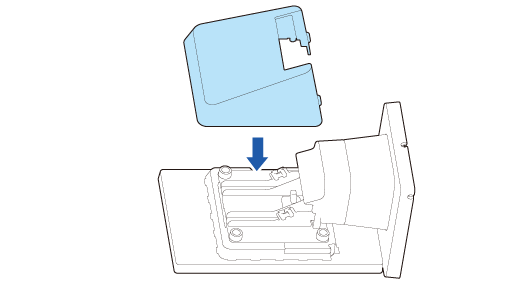
  7. Route the cable as shown below.

  8. Attach the rear cover.

  • Back
  • Top
  • Next

Before Using the Product

Important Safety InformationProduct Information PageChecking Items Included with the Customer DisplayOptional KitsFerrite Core

Part Names

Part Names

Setup

Connecting to the PrinterConnecting to the ComputerRouting the USB Cable

Basic Operations

Turning the Power On/OffChanging the Angle of the Display UnitAdjusting the Display Brightness

Installing the Product in Various Ways

Changing the Display Orientation to PortraitAttaching the Display to a VESA MountAttaching the EXTENSION POLE UNIT FOR DM-D70 (DP-70)Attaching the CRANK POLE UNIT FOR TM-T88VI-DT2 (DP-71)

Cleaning

Cleaning the Outer Case

Troubleshooting

Nothing is Displayed on the ScreenThe Screen Looks Dark when the Display is Attached in Portrait Orientation

Appendix

Product SpecificationsWARNINGRestriction of UseCAUTIONSTrademarks

Top > Installing the Product in Various Ways > Changing the Display Orientation to Portrait

Changing the Display Orientation to Portrait

Follow the procedure below to change the display orientation to portrait.

Note:

Change the display orientation to portrait if your application software supports portrait display.

  1. Place the product screen-side down on a soft cloth or the like.

  2. Remove the rear cover.

  3. Remove the four screws.

  4. Release the USB cable from the notch, and then remove the stand.

  5. Change orientation of the stand referring to the mark on the rear of the display.

  6. Secure the stand with the four screws.

  7. Route the cable as shown below.

  8. Attach the rear cover.

  • Back
  • Top
  • Next

©Seiko Epson Corporation 2020 - 2023 (M00134006 EN)

Language selection

  • English
  • Français
  • Deutsch
  • Nederlands
  • Italiano
  • Español
  • Português
  • Türkçe
  • Ελληνικά
  • Slovenščina
  • Hrvatski
  • Македонски
  • Srpski
  • Dansk
  • Suomi
  • Norsk
  • Svenska
  • Polski
  • Česky
  • Magyar
  • Slovenčina
  • Română
  • Български
  • Latviešu
  • Lietuvių
  • Eesti
  • Русский
  • Українська
  • Қазақ
  • العربية
  • 日本語