Before Using the Product
Part Names
Setup
Basic Operations
Installing the Product in Various Ways
Cleaning
Troubleshooting
Appendix
Top > Installing the Product in Various Ways > Attaching the EXTENSION POLE UNIT FOR DM-D70 (DP-70)
Attaching the EXTENSION POLE UNIT FOR DM-D70 (DP-70)
Follow the procedure below to attach the optional kit, EXTENSION POLE UNIT FOR DM-D70 (DP-70).
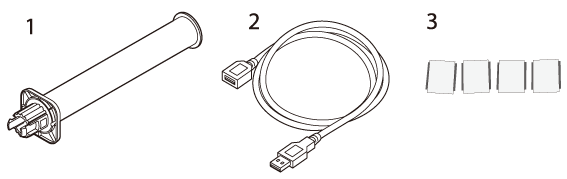
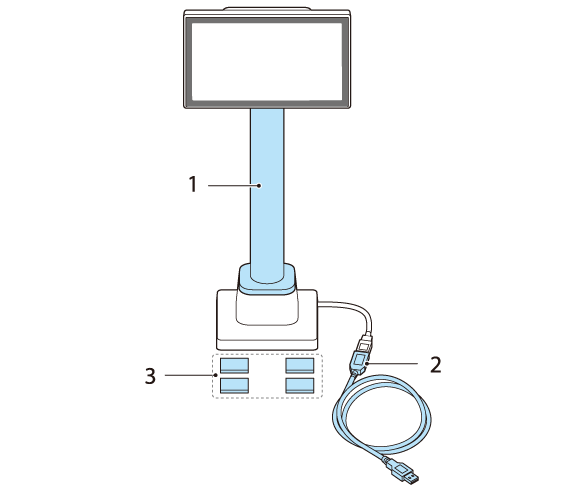
Contents of the DP-70 package
1. Extension pole
2. USB extension cable
3. Stickers for fixing the product
-
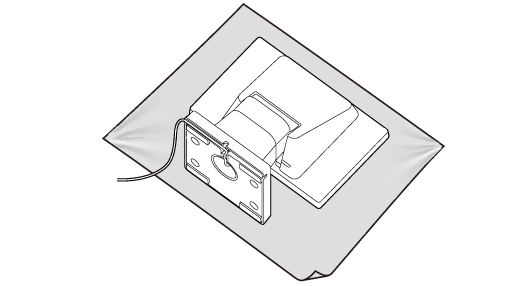
Place the product screen-side down on a soft cloth or the like.
-
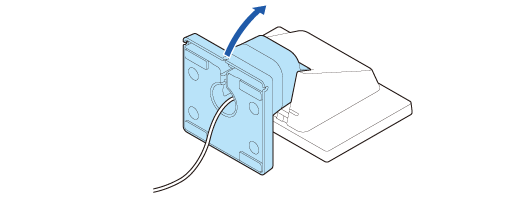
Raise the stand.
-
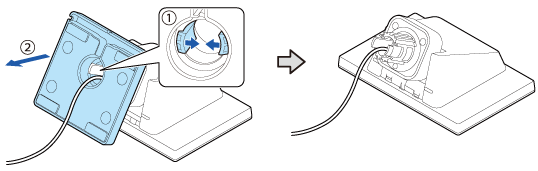
Push the tabs inward and pull out the stand.
-
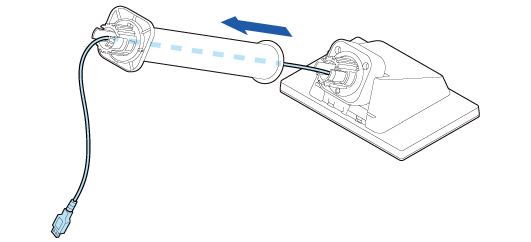
Pass the USB cable through the extension pole.
-
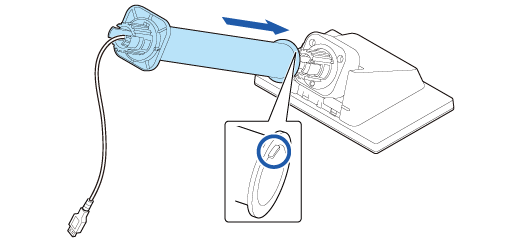
Attach the extension pole to the display. Insert the tab on the pole into the groove on the display.
-
Pass the USB cable through the stand.
-
Attach the stand to the extension pole. Insert the tab on the stand into the groove on the pole.
-
Secure the USB cable by fitting it into the groove, and then route the cable so that it passes through one of the three notches.
-
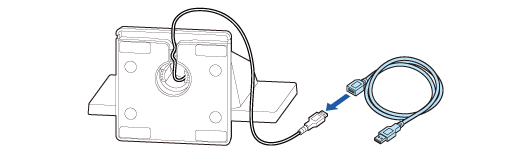
Connects the USB extension cable if necessary.
-
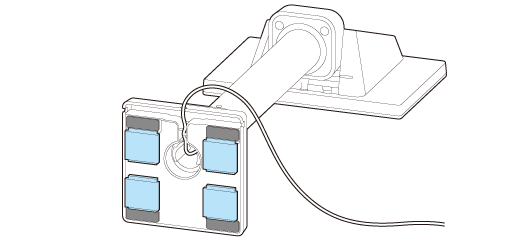
Attach the four stickers to the bottom of the stand.
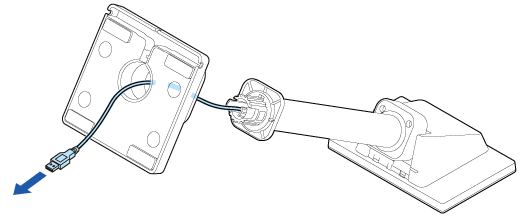
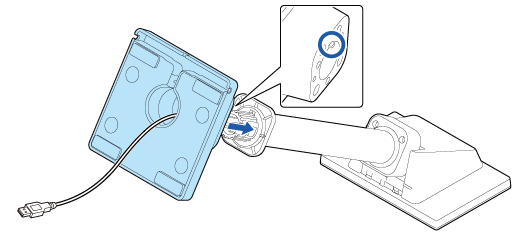
Make sure to fit the cable into the groove to secure the cable properly.

To prevent the product from falling over, use the stickers to secure the product to a table, desk, or etc.
 Note:
Note:To remove the extension pole from the display, pull the pole hard.
Before Using the Product
Part Names
Setup
Basic Operations
Installing the Product in Various Ways
Cleaning
Troubleshooting
Appendix
Top > Installing the Product in Various Ways > Attaching the EXTENSION POLE UNIT FOR DM-D70 (DP-70)
Attaching the EXTENSION POLE UNIT FOR DM-D70 (DP-70)
Follow the procedure below to attach the optional kit, EXTENSION POLE UNIT FOR DM-D70 (DP-70).
Contents of the DP-70 package
1. Extension pole
2. USB extension cable
3. Stickers for fixing the product
-
Place the product screen-side down on a soft cloth or the like.
-
Raise the stand.
-
Push the tabs inward and pull out the stand.
-
Pass the USB cable through the extension pole.
-
Attach the extension pole to the display. Insert the tab on the pole into the groove on the display.
-
Pass the USB cable through the stand.
-
Attach the stand to the extension pole. Insert the tab on the stand into the groove on the pole.
-
Secure the USB cable by fitting it into the groove, and then route the cable so that it passes through one of the three notches.
-
Connects the USB extension cable if necessary.
-
Attach the four stickers to the bottom of the stand.
Make sure to fit the cable into the groove to secure the cable properly.
To prevent the product from falling over, use the stickers to secure the product to a table, desk, or etc.
Note:To remove the extension pole from the display, pull the pole hard.