Epson
LW-K200PX-DBL/PX-RDB/DBL User's Manual

Epson

LW-K200PX-DBL/PX-RDB/DBL User's Manual

Before Using the Printer

Notations used in the documentationAbout product model numbers and tape cartridgesCAUTIONS

Part Names and Functions

Operation PanelDisplay

Setting Up

Preparing the power supplyInserting or removing tape cartridgeTurning the printer on and offFeeding the tape

Basic Operations

Entering text and printing labelEditing textAdding punctuation marks and symbolsAttaching labels

Useful Functions

Changing the font sizeChanging the fontApplying a font styleSpecifying the length of labelsChanging the layoutChanging the margins of labelsAdjusting the space between charactersLining up characters verticallyUsing mirror writing for the labelSaving frequently used labels

Creating a Label with a Special Form

Creating your original ribbonAdding blockCreating framed labelsCreating an original mark

Cleaning the Printer

When the exterior is dirtyWhen the printhead is dirty

Preference

Adjusting print densityChanging the battery type settingChanging display language and unit of length (inch/cm)

Troubleshooting

Error MessagesProblemsInitializing the printer

Product Specifications

Specifications

Symbol, Accent Mark, Frame

SymbolAccent markFrame

Top > Basic Operations > Attaching labels

Attaching labels

Your printed labels are easy to attach to most surfaces.

Caution
  • Depending on the environment and the surface to which you attach them, labels may peel off or become discolored, and the adhesive may remain on or damage the surface. Epson is not responsible for any damage or loss due to these causes.

  • Do not attach labels to human bodies or other living things, or to surfaces that you are not authorized to modify.

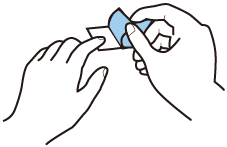
  1. Peel off the backing.

  2. Place the label on the desired surface and press it down firmly.
Before Using the Printer

Notations used in the documentationAbout product model numbers and tape cartridgesCAUTIONS

Part Names and Functions

Operation PanelDisplay

Setting Up

Preparing the power supplyInserting or removing tape cartridgeTurning the printer on and offFeeding the tape

Basic Operations

Entering text and printing labelEditing textAdding punctuation marks and symbolsAttaching labels

Useful Functions

Changing the font sizeChanging the fontApplying a font styleSpecifying the length of labelsChanging the layoutChanging the margins of labelsAdjusting the space between charactersLining up characters verticallyUsing mirror writing for the labelSaving frequently used labels

Creating a Label with a Special Form

Creating your original ribbonAdding blockCreating framed labelsCreating an original mark

Cleaning the Printer

When the exterior is dirtyWhen the printhead is dirty

Preference

Adjusting print densityChanging the battery type settingChanging display language and unit of length (inch/cm)

Troubleshooting

Error MessagesProblemsInitializing the printer

Product Specifications

Specifications

Symbol, Accent Mark, Frame

SymbolAccent markFrame

Top > Basic Operations > Attaching labels

Attaching labels

Your printed labels are easy to attach to most surfaces.

Caution
  • Depending on the environment and the surface to which you attach them, labels may peel off or become discolored, and the adhesive may remain on or damage the surface. Epson is not responsible for any damage or loss due to these causes.

  • Do not attach labels to human bodies or other living things, or to surfaces that you are not authorized to modify.

  1. Peel off the backing.

  2. Place the label on the desired surface and press it down firmly.

©Seiko Epson Corporation 2023 (M00157600 EN)