
Before Using the Printer
Part Names
Setup
Basic Operations
Cleaning
Troubleshooting
Product Specifications
Appendix
Top > Part Names > Body
Body
-
Front
-
Rear
-
Bottom
|
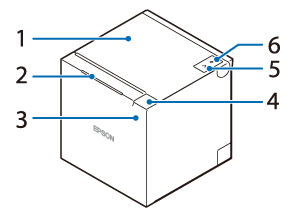
1 |
Roll paper cover |
Open this cover when installing or replacing the roll paper. |
|
2 |
Panel LED |
These LEDs indicate the operating status of the printer. |
|
3 |
NFC Tag |
A mark is printed here to indicate the position of the NFC tag. Bring an NFC-compatible device close to the mark to obtain information about the printer. |
|
4 |
Cover open lever |
Operate this lever to open the roll paper cover. |
|
5 |
Feed button |
Press this button once to feed the roll paper for one line. Hold down this button to continue feeding the roll paper. |
|
6 |
Power button |
This button turns the printer on or off. |
|
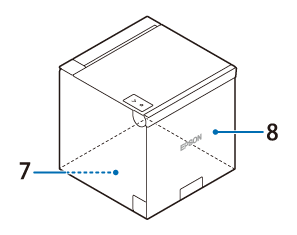
7 |
Bottom cover (With four rubber feet attached) |
Remove these covers when connecting the DC cable of the AC adapter, interface cables, or USB cables of peripheral devices. Also, when you want to change the paper eject direction, remove the two covers and reattach them switching the attachment position. |
|
8 |
Rear cover (There is a logo on the cover) |
|
|
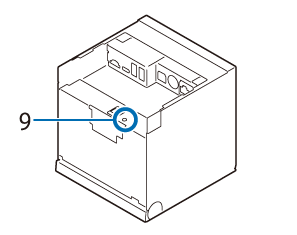
9 |
Status sheet button |
Use this button to print a status sheet on interfaces or initialize the settings on interfaces. |


Before Using the Printer
Part Names
Setup
Basic Operations
Cleaning
Troubleshooting
Product Specifications
Appendix
Top > Part Names > Body
Body
-
Front
-
Rear
-
Bottom
|
1 |
Roll paper cover |
Open this cover when installing or replacing the roll paper. |
|
2 |
Panel LED |
These LEDs indicate the operating status of the printer. |
|
3 |
NFC Tag |
A mark is printed here to indicate the position of the NFC tag. Bring an NFC-compatible device close to the mark to obtain information about the printer. |
|
4 |
Cover open lever |
Operate this lever to open the roll paper cover. |
|
5 |
Feed button |
Press this button once to feed the roll paper for one line. Hold down this button to continue feeding the roll paper. |
|
6 |
Power button |
This button turns the printer on or off. |
|
7 |
Bottom cover (With four rubber feet attached) |
Remove these covers when connecting the DC cable of the AC adapter, interface cables, or USB cables of peripheral devices. Also, when you want to change the paper eject direction, remove the two covers and reattach them switching the attachment position. |
|
8 |
Rear cover (There is a logo on the cover) |
|
|
9 |
Status sheet button |
Use this button to print a status sheet on interfaces or initialize the settings on interfaces. |