Language
Epson

TM-m30III-H

User's Manual

Epson

TM-m30III-H

User's Manual

Troubleshoot
Troubleshooting

Before Using the Printer

Important Safety InformationManuals for This ProductProduct Information PageChecking Items Included with the Printer

Part Names

BodyPanel LEDConnectors

Setup

Checking/Changing the Installation DirectionChanging the Paper WidthConnecting CablesRouting Cables in Various DirectionsConnecting Smart Devices

Basic Operations

Turning the Power On/OffRemoving the Printer CoversAttaching the Printer CoversInstalling or Replacing the Roll Paper

Cleaning

Cleaning the Printer CaseCleaning the Thermal Head and the Platen Roller

Troubleshooting

About the QR Code Label on the PrinterMeanings of LED IndicationsPrintout is FaintCannot PrintWhen the Roll Paper Jams

Product Specifications

SpecificationsChecking the Product Name and Model NumberList of Installed Interfaces by Model

Appendix

Restriction of UseCAUTIONSTrademarks

Top > Basic Operations > Attaching the Printer Covers

Attaching the Printer Covers

Depending on attachment positions of the rear and bottom covers, paper eject direction changes. Decide from which way to eject paper according to the installation location of the printer.
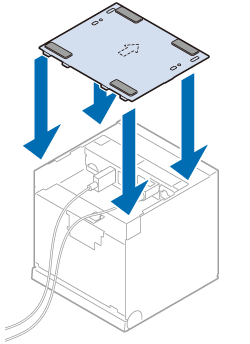
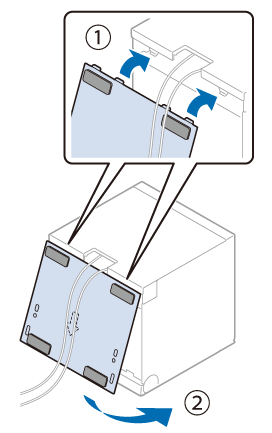
For Ejecting Paper Upward

Follow the steps below to attach the printer covers.

  1. Align the catches and attach the bottom cover to the printer.

  2. Hook the catches into the bottom cover and attach the rear cover to the printer.

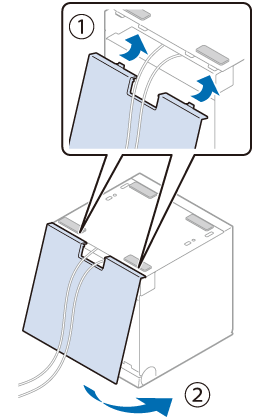
For Ejecting Paper Frontward

Follow the steps below to attach the printer covers.

  1. Align the catches and attach the rear cover to the printer

  2. Hook the catches into the rear cover and attach the bottom cover to the printer.

  • Back
  • Top
  • Next
Troubleshoot
Troubleshooting

Before Using the Printer

Important Safety InformationManuals for This ProductProduct Information PageChecking Items Included with the Printer

Part Names

BodyPanel LEDConnectors

Setup

Checking/Changing the Installation DirectionChanging the Paper WidthConnecting CablesRouting Cables in Various DirectionsConnecting Smart Devices

Basic Operations

Turning the Power On/OffRemoving the Printer CoversAttaching the Printer CoversInstalling or Replacing the Roll Paper

Cleaning

Cleaning the Printer CaseCleaning the Thermal Head and the Platen Roller

Troubleshooting

About the QR Code Label on the PrinterMeanings of LED IndicationsPrintout is FaintCannot PrintWhen the Roll Paper Jams

Product Specifications

SpecificationsChecking the Product Name and Model NumberList of Installed Interfaces by Model

Appendix

Restriction of UseCAUTIONSTrademarks

Top > Basic Operations > Attaching the Printer Covers

Attaching the Printer Covers

Depending on attachment positions of the rear and bottom covers, paper eject direction changes. Decide from which way to eject paper according to the installation location of the printer.
For Ejecting Paper Upward

Follow the steps below to attach the printer covers.

  1. Align the catches and attach the bottom cover to the printer.

  2. Hook the catches into the bottom cover and attach the rear cover to the printer.

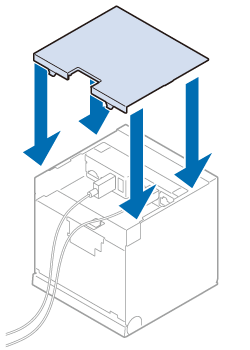
For Ejecting Paper Frontward

Follow the steps below to attach the printer covers.

  1. Align the catches and attach the rear cover to the printer

  2. Hook the catches into the rear cover and attach the bottom cover to the printer.

  • Back
  • Top
  • Next

©Seiko Epson Corporation 2022 (M00146701 EN)

Language selection

  • English
  • Français
  • Deutsch
  • Nederlands
  • Italiano
  • Español
  • Português
  • Türkçe
  • Ελληνικά
  • Slovenščina
  • Hrvatski
  • Македонски
  • Srpski
  • Dansk
  • Suomi
  • Norsk
  • Svenska
  • Polski
  • Česky
  • Magyar
  • Slovenčina
  • Română
  • Български
  • Latviešu
  • Lietuvių
  • Eesti
  • Русский
  • Українська
  • Қазақ
  • العربية
  • 日本語