Language
Epson

TM-m30III-H

User's Manual

Epson

TM-m30III-H

User's Manual

Troubleshoot
Troubleshooting

Before Using the Printer

Important Safety InformationManuals for This ProductProduct Information PageChecking Items Included with the Printer

Part Names

BodyPanel LEDConnectors

Setup

Checking/Changing the Installation DirectionChanging the Paper WidthConnecting CablesRouting Cables in Various DirectionsConnecting Smart Devices

Basic Operations

Turning the Power On/OffRemoving the Printer CoversAttaching the Printer CoversInstalling or Replacing the Roll Paper

Cleaning

Cleaning the Printer CaseCleaning the Thermal Head and the Platen Roller

Troubleshooting

About the QR Code Label on the PrinterMeanings of LED IndicationsPrintout is FaintCannot PrintWhen the Roll Paper Jams

Product Specifications

SpecificationsChecking the Product Name and Model NumberList of Installed Interfaces by Model

Appendix

Restriction of UseCAUTIONSTrademarks

Top > Setup > Changing the Paper Width

Changing the Paper Width

You can change the paper width from 80 to 58 mm by installing the included 58-mm width roll paper guides. Follow the steps below to change the paper width.

CAUTION:

Turn off the printer when installing the roll paper guides.

  1. Open the roll paper cover.

  2. Install the roll paper guides aligning the triangle marks as shown below.

  3. Set the paper width in software setting mode. For details, see the Technical Reference Guide.

  4. Manuals for This Product

CAUTION:

After using the printer for an extended period at 58 mm, do not return to 80 mm. Parts of the print head that do not normally touch the paper may be damaged by the platen roller, and the autocutter may wear out.

  • Back
  • Top
  • Next
Troubleshoot
Troubleshooting

Before Using the Printer

Important Safety InformationManuals for This ProductProduct Information PageChecking Items Included with the Printer

Part Names

BodyPanel LEDConnectors

Setup

Checking/Changing the Installation DirectionChanging the Paper WidthConnecting CablesRouting Cables in Various DirectionsConnecting Smart Devices

Basic Operations

Turning the Power On/OffRemoving the Printer CoversAttaching the Printer CoversInstalling or Replacing the Roll Paper

Cleaning

Cleaning the Printer CaseCleaning the Thermal Head and the Platen Roller

Troubleshooting

About the QR Code Label on the PrinterMeanings of LED IndicationsPrintout is FaintCannot PrintWhen the Roll Paper Jams

Product Specifications

SpecificationsChecking the Product Name and Model NumberList of Installed Interfaces by Model

Appendix

Restriction of UseCAUTIONSTrademarks

Top > Setup > Changing the Paper Width

Changing the Paper Width

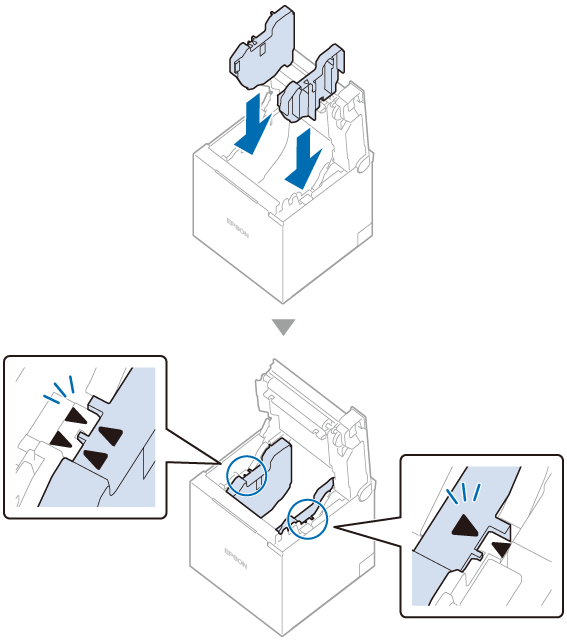
You can change the paper width from 80 to 58 mm by installing the included 58-mm width roll paper guides. Follow the steps below to change the paper width.

CAUTION:

Turn off the printer when installing the roll paper guides.

  1. Open the roll paper cover.

  2. Install the roll paper guides aligning the triangle marks as shown below.

  3. Set the paper width in software setting mode. For details, see the Technical Reference Guide.
  4. Manuals for This Product

CAUTION:

After using the printer for an extended period at 58 mm, do not return to 80 mm. Parts of the print head that do not normally touch the paper may be damaged by the platen roller, and the autocutter may wear out.

  • Back
  • Top
  • Next

©Seiko Epson Corporation 2022 (M00146701 EN)

Language selection

  • English
  • Français
  • Deutsch
  • Nederlands
  • Italiano
  • Español
  • Português
  • Türkçe
  • Ελληνικά
  • Slovenščina
  • Hrvatski
  • Македонски
  • Srpski
  • Dansk
  • Suomi
  • Norsk
  • Svenska
  • Polski
  • Česky
  • Magyar
  • Slovenčina
  • Română
  • Български
  • Latviešu
  • Lietuvių
  • Eesti
  • Русский
  • Українська
  • Қазақ
  • العربية
  • 日本語