
Before Using the Printer
Important Safety InformationManuals for This ProductProduct Information PageChecking Items Included with the Printer
Part Names
Setup
Checking/Changing the Installation DirectionChanging the Paper WidthConnecting CablesRouting Cables in Various DirectionsConnecting Smart Devices
Basic Operations
Turning the Power On/OffRemoving the Printer CoversAttaching the Printer CoversInstalling or Replacing the Roll Paper
Cleaning
Troubleshooting
About the QR Code Label on the PrinterMeanings of LED IndicationsPrintout is FaintCannot PrintWhen the Roll Paper Jams
Product Specifications
Appendix
Top > Troubleshooting > Printout is Faint
Printout is Faint
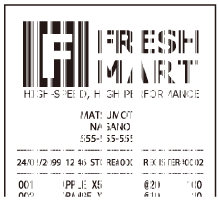
If your print out is faint or banding appears as shown below, the thermal print head may be stained badly. Clean the thermal print head and check that the problem is solved.
 Cleaning the Thermal Head and the Platen Roller
Before Using the Printer
Important Safety InformationManuals for This ProductProduct Information PageChecking Items Included with the Printer
Part Names
Setup
Checking/Changing the Installation DirectionChanging the Paper WidthConnecting CablesRouting Cables in Various DirectionsConnecting Smart Devices
Basic Operations
Turning the Power On/OffRemoving the Printer CoversAttaching the Printer CoversInstalling or Replacing the Roll Paper
Cleaning
Troubleshooting
About the QR Code Label on the PrinterMeanings of LED IndicationsPrintout is FaintCannot PrintWhen the Roll Paper Jams
Product Specifications
Appendix
Top > Troubleshooting > Printout is Faint
Printout is Faint
If your print out is faint or banding appears as shown below, the thermal print head may be stained badly. Clean the thermal print head and check that the problem is solved.
Cleaning the Thermal Head and the Platen Roller