
Introduction to Your LABELWORKS Printer
Setting Up the Printer
Using the Label Printer With Your Mobile Device via Bluetooth®
Using with a Windows® Computer via Bluetooth®
Using with a Windows® Computer via USB
Using with a Mac Computer
Applying Your Labels
Cleaning the Printer
Solving Problems
Appendix
Notices
Top > Applying Your Labels > Applying Your Labels
Applying Your Labels
Your printed labels are easy to attach to most surfaces.
 CAUTION CAUTIONDo not attach labels to human bodies or other living things, or to surfaces that you are not authorized to modify. |
 Note NoteDepending on the environment and the surface to which you attach them, labels may peel off or become discolored, and the adhesive may remain on or damage the surface. Epson is not responsible for any damage or loss due to these causes. |
-
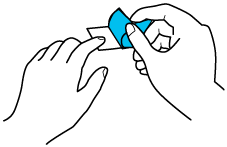
Peel off the backing.
-
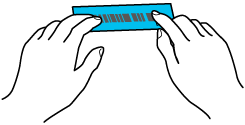
Place the label on the desired surface and press it down firmly.
Introduction to Your LABELWORKS Printer
Setting Up the Printer
Using the Label Printer With Your Mobile Device via Bluetooth®
Using with a Windows® Computer via Bluetooth®
Using with a Windows® Computer via USB
Using with a Mac Computer
Applying Your Labels
Cleaning the Printer
Solving Problems
Appendix
Notices
Top > Applying Your Labels > Applying Your Labels
Applying Your Labels
Your printed labels are easy to attach to most surfaces.
|
CAUTION Do not attach labels to human bodies or other living things, or to surfaces that you are not authorized to modify. |
|
Note Depending on the environment and the surface to which you attach them, labels may peel off or become discolored, and the adhesive may remain on or damage the surface. Epson is not responsible for any damage or loss due to these causes. |
-
Peel off the backing.
-
Place the label on the desired surface and press it down firmly.