Language
Epson

LW-C650PK/LW-C650GR/LW-C650PX

User's Manual

Epson

LW-C650PK/LW-C650GR/LW-C650PX

User's Manual

Troubleshoot
Solving Problems

Introduction to Your LABELWORKS Printer

Notations Used in the DocumentationAbout Your Printer Model NumberProduct Box ContentsLabel Printer Parts

Setting Up the Printer

Preparing the power supplyInserting Tape CartridgesRemoving Tape CartridgesTurning the Printer On and Off

Using the Label Printer With Your Mobile Device via Bluetooth®

Installing Epson App for Creating LabelsConnecting the Printer to Your Mobile DeviceTurning Off Bluetooth® on the Printer

Using with a Windows® Computer via Bluetooth®

Downloading Printer Driver and Epson Software for Windows ComputerInstalling Label Editor and Connecting the Printer to Your Windows ComputerTurning Off Bluetooth® on the Printer

Using with a Windows® Computer via USB

Downloading Printer Driver and Epson Software for Windows ComputerInstalling Label Editor and Connecting the Printer to Your Windows Computer

Using with a Mac Computer

Installing Epson App for Creating LabelsHow to Connect using USBHow to Connect using Bluetooth®

Applying Your Labels

Applying Your Labels

Cleaning the Printer

Cleaning the Outside of the PrinterCleaning the Print Head

Solving Problems

Meanings of lampResetting the PrinterSolutions When the Printer Does Not Turn OnCannot Connect With Bluetooth®Solutions When the Printer Does Not PrintSolutions to Computer Printing ProblemsSolutions When Print Quality Is PoorSolutions to Tape Cutting ProblemsSolutions to Problems Attaching LabelsWhere to Get Help

Appendix

Printer SpecificationsEnabling and Disabling the Bluetooth® Function

Notices

TrademarksCopyright Notice

Top > Using with a Windows® Computer via Bluetooth® > Turning Off Bluetooth® on the Printer

Turning Off Bluetooth® on the Printer

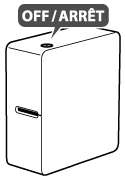
The printer is not equipped with a button or switch for enabling or disabling Bluetooth. Turn the printer off to turn off Bluetooth.
Related information

Enabling and Disabling the Bluetooth® Function

  • Back
  • Top
  • Next
Troubleshoot
Solving Problems

Introduction to Your LABELWORKS Printer

Notations Used in the DocumentationAbout Your Printer Model NumberProduct Box ContentsLabel Printer Parts

Setting Up the Printer

Preparing the power supplyInserting Tape CartridgesRemoving Tape CartridgesTurning the Printer On and Off

Using the Label Printer With Your Mobile Device via Bluetooth®

Installing Epson App for Creating LabelsConnecting the Printer to Your Mobile DeviceTurning Off Bluetooth® on the Printer

Using with a Windows® Computer via Bluetooth®

Downloading Printer Driver and Epson Software for Windows ComputerInstalling Label Editor and Connecting the Printer to Your Windows ComputerTurning Off Bluetooth® on the Printer

Using with a Windows® Computer via USB

Downloading Printer Driver and Epson Software for Windows ComputerInstalling Label Editor and Connecting the Printer to Your Windows Computer

Using with a Mac Computer

Installing Epson App for Creating LabelsHow to Connect using USBHow to Connect using Bluetooth®

Applying Your Labels

Applying Your Labels

Cleaning the Printer

Cleaning the Outside of the PrinterCleaning the Print Head

Solving Problems

Meanings of lampResetting the PrinterSolutions When the Printer Does Not Turn OnCannot Connect With Bluetooth®Solutions When the Printer Does Not PrintSolutions to Computer Printing ProblemsSolutions When Print Quality Is PoorSolutions to Tape Cutting ProblemsSolutions to Problems Attaching LabelsWhere to Get Help

Appendix

Printer SpecificationsEnabling and Disabling the Bluetooth® Function

Notices

TrademarksCopyright Notice

Top > Using with a Windows® Computer via Bluetooth® > Turning Off Bluetooth® on the Printer

Turning Off Bluetooth® on the Printer

The printer is not equipped with a button or switch for enabling or disabling Bluetooth. Turn the printer off to turn off Bluetooth.

Related information

Enabling and Disabling the Bluetooth® Function

  • Back
  • Top
  • Next

©Seiko Epson Corporation 2026 (M10002000 EN)

Language selection

  • English
  • Français
  • Español
  • 繁體中文
  • 한국어