
Introduction to Your LABELWORKS Printer
Setting Up the Printer
Using the Label Printer With Your Mobile Device via Bluetooth®
Using with a Windows® Computer via Bluetooth®
Using with a Windows® Computer via USB
Using with a Mac Computer
Applying Your Labels
Cleaning the Printer
Solving Problems
Appendix
Notices
Top > Appendix > Enabling and Disabling the Bluetooth® Function
Enabling and Disabling the Bluetooth® Function
At the time of purchase, the Bluetooth function is set to be enabled when you turn on the power of the printer. This can be switched between enable and disable by button operation.
You can check the state of the Bluetooth function with the lamp.
Related references

-
If the power of the printer is on, press the power button to turn off the power.
-
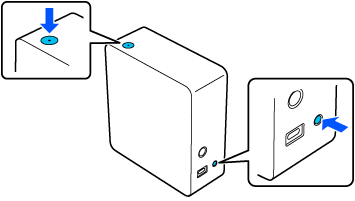
Press the power button and Bluetooth button at the same time to turn on the power of the printer.
 Note NoteRepeat steps 1 and 2 to alternate between enable and disable. |
Introduction to Your LABELWORKS Printer
Setting Up the Printer
Using the Label Printer With Your Mobile Device via Bluetooth®
Using with a Windows® Computer via Bluetooth®
Using with a Windows® Computer via USB
Using with a Mac Computer
Applying Your Labels
Cleaning the Printer
Solving Problems
Appendix
Notices
Top > Appendix > Enabling and Disabling the Bluetooth® Function
Enabling and Disabling the Bluetooth® Function
At the time of purchase, the Bluetooth function is set to be enabled when you turn on the power of the printer. This can be switched between enable and disable by button operation.
You can check the state of the Bluetooth function with the lamp.
Related references
-
If the power of the printer is on, press the power button to turn off the power.
-
Press the power button and Bluetooth button at the same time to turn on the power of the printer.
|
Note Repeat steps 1 and 2 to alternate between enable and disable. |