You can scan panoramic photos.
Before scanning, check the specification of panoramic photos you can scan.
|
Measurement
|
Loading Capacity
|
Input and Output Tray of the Scanner
|
|
89 × 254 mm (3.5 × 10.0 in.)
|
10 sheets
|
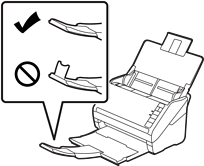
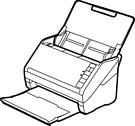
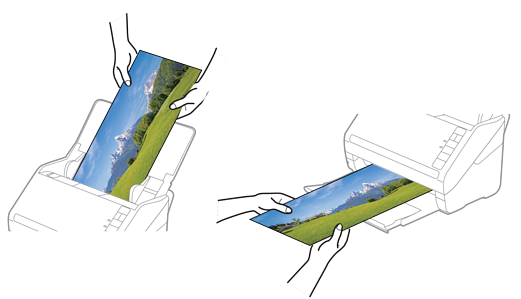
Extend the input and output tray extensions, and do not raise the stopper.
|
|
102 × 304.8 mm (4.0 × 12.0 in.)
|
|
Other size: Length up to 304.8 mm (12.0 in.)
|
|
Other size: Length 304.8 mm (12.0 in.) to 914.4 mm (36.0 in.) *
(Max size: 215.9 × 914.4 mm (8.5 × 36.0 in.) )
|
1 sheet
|
Do not extend the input tray extension and output tray extensions and do not raise the stopper.
|
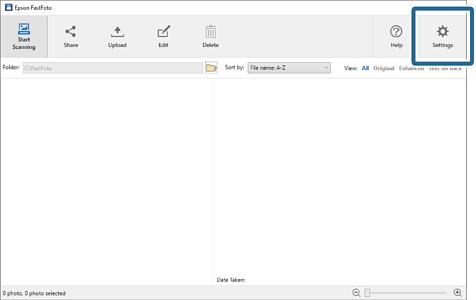
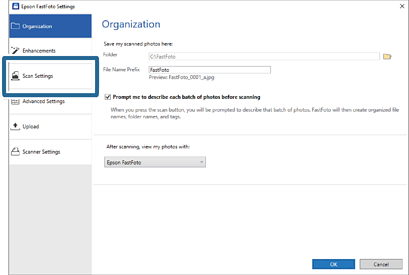
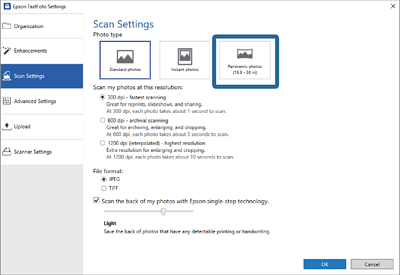
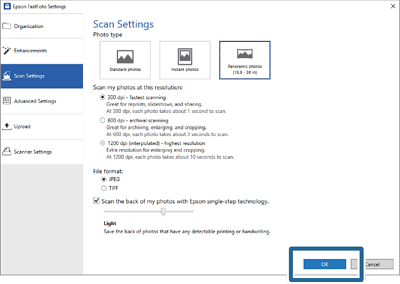
*When scanning photos that are 393.8 mm (15.5 in.) or more, you need to change the Epson FastFoto scan settings. See the instructions below.


 Home
Home