Introduction
Basic Operations
Creating a Variety of Labels
Printing
Changing Preference Settings
Appendix
Top > Basic Operations > Inserting Objects in a Label
Inserting Objects in a Label
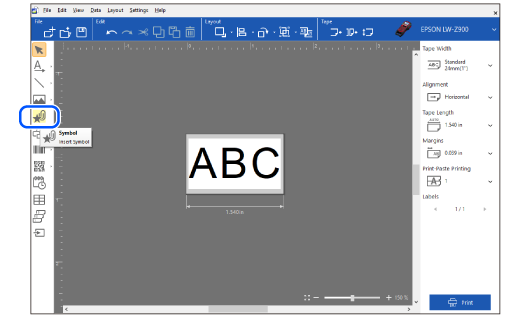
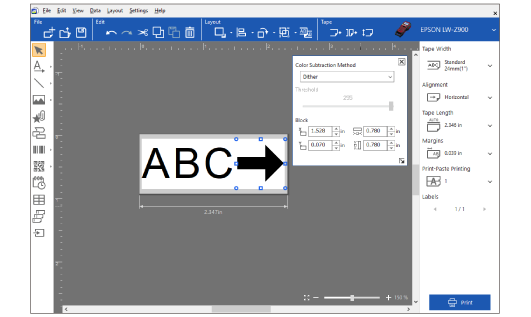
You can insert multiple objects such as symbol, border, image, and barcode in a label, and arrange them freely. The following procedure is an example to add a symbol after inserting a text.
 Note: Note:Label Editor describes an inserted object as a “block”. |
-
Click in the tool box, and select a symbol you want to add in the Symbol window, then click OK.
-
Insert the symbol by clicking at a position you want to insert it.
|
Note: To align multiple objects at a time Select all the objects, and align them using one of the Align options in the Layout menu.
|
Introduction
Basic Operations
Creating a Variety of Labels
Printing
Changing Preference Settings
Appendix
Top > Basic Operations > Inserting Objects in a Label
Inserting Objects in a Label
You can insert multiple objects such as symbol, border, image, and barcode in a label, and arrange them freely. The following procedure is an example to add a symbol after inserting a text.
|
Note: Label Editor describes an inserted object as a “block”. |
-
Click in the tool box, and select a symbol you want to add in the Symbol window, then click OK.
-
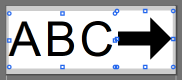
Insert the symbol by clicking at a position you want to insert it.
|
Note: To align multiple objects at a time Select all the objects, and align them using one of the Align options in the Layout menu.
|