Epson
Label Editor Online Manual

Epson

Label Editor Online Manual

Introduction

Label Editor Screen

Basic Operations

Creating a New LabelInserting Objects in a LabelChanging Object SettingsSelecting Printer and TapeSetting Label LengthHow to Use the Data Creation WindowSaving Label FilesOpening Saved Label FilesCreating Labels for Label Editor Mobile

Creating a Variety of Labels

Creating Variable Length Labels in a Single Print (Mix-Length)Creating Labels for Equipment Tagging (Equipment Management)Creating Labels Using an Excel or Other Format FileCreating Cable LabelsPrinting Labels in Label CatalogPrinting the Same Text Repeatedly Adding an Automatic Serialization Object in LabelsAdding a Barcode or QR CodeCreating a Large Label by Printing One Image on Multiple LabelsTransferring Label Files to Printer (Data Transfer Tool)

Printing

Printing Labels

Changing Preference Settings

Changing Preference Settings (Preferences)

Appendix

List of Printers by Supported Function

Top > Creating a Variety of Labels > Creating a Large Label by Printing One Image on Multiple Labels

Creating a Large Label by Printing One Image on Multiple Labels

You can divide one label image into specified number of pieces and print them. By pasting the printed pieces of the label together, a large label can be created.

Example:

Note:
  • Each piece of the label is printed with top and bottom margins. Cut off the margins before pasting the pieces together.

  • If your printer supports borderless printing, you can print the label pieces without the margins.

    Borderless Printing

    Printers that support Borderless Printing

  1. Specify the number of pieces of a label in Print-Paste Printing.

  2. Dotted lines are displayed as the dividing lines.

  3. Enter a text.

  4. Format the label by adjusting position of blocks, font size, etc.

  5. Changing Object Settings

  6. Click to print the file.

  7. You can print all pieces or select which piece to print.

    Printing Labels created using the Print-Paste Printing Function (Advanced Settings)

Introduction

Label Editor Screen

Basic Operations

Creating a New LabelInserting Objects in a LabelChanging Object SettingsSelecting Printer and TapeSetting Label LengthHow to Use the Data Creation WindowSaving Label FilesOpening Saved Label FilesCreating Labels for Label Editor Mobile

Creating a Variety of Labels

Creating Variable Length Labels in a Single Print (Mix-Length)Creating Labels for Equipment Tagging (Equipment Management)Creating Labels Using an Excel or Other Format FileCreating Cable LabelsPrinting Labels in Label CatalogPrinting the Same Text Repeatedly Adding an Automatic Serialization Object in LabelsAdding a Barcode or QR CodeCreating a Large Label by Printing One Image on Multiple LabelsTransferring Label Files to Printer (Data Transfer Tool)

Printing

Printing Labels

Changing Preference Settings

Changing Preference Settings (Preferences)

Appendix

List of Printers by Supported Function

Top > Creating a Variety of Labels > Creating a Large Label by Printing One Image on Multiple Labels

Creating a Large Label by Printing One Image on Multiple Labels

You can divide one label image into specified number of pieces and print them. By pasting the printed pieces of the label together, a large label can be created.

Example:

Note:
  • Each piece of the label is printed with top and bottom margins. Cut off the margins before pasting the pieces together.

  • If your printer supports borderless printing, you can print the label pieces without the margins.

    Borderless Printing

    Printers that support Borderless Printing

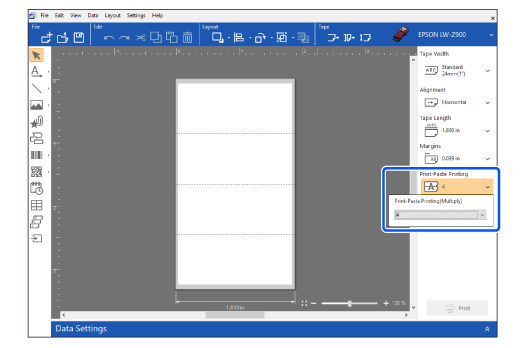
  1. Specify the number of pieces of a label in Print-Paste Printing.

  2. Dotted lines are displayed as the dividing lines.
  3. Enter a text.

  4. Format the label by adjusting position of blocks, font size, etc.

  5. Changing Object Settings

  6. Click to print the file.

  7. You can print all pieces or select which piece to print.

    Printing Labels created using the Print-Paste Printing Function (Advanced Settings)

©Seiko Epson Corporation 2019-2024 (M00124805 EN)