Epson
Label Editor Online Manual

Epson

Label Editor Online Manual

Introduction

Label Editor Screen

Basic Operations

Creating a New LabelInserting Objects in a LabelChanging Object SettingsSelecting Printer and TapeSetting Label LengthHow to Use the Data Creation WindowSaving Label FilesOpening Saved Label FilesCreating Labels for Label Editor Mobile

Creating a Variety of Labels

Creating Variable Length Labels in a Single Print (Mix-Length)Creating Labels for Equipment Tagging (Equipment Management)Creating Labels Using an Excel or Other Format FileCreating Cable LabelsPrinting Labels in Label CatalogPrinting the Same Text Repeatedly Adding an Automatic Serialization Object in LabelsAdding a Barcode or QR CodeCreating a Large Label by Printing One Image on Multiple LabelsTransferring Label Files to Printer (Data Transfer Tool)

Printing

Printing Labels

Changing Preference Settings

Changing Preference Settings (Preferences)

Appendix

List of Printers by Supported Function

Top > Basic Operations > Setting Label Length

Setting Label Length

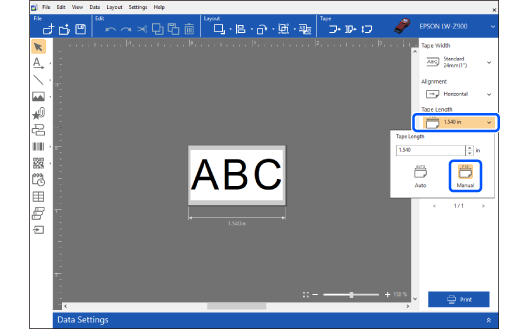
By default, the label length automatically changes according to the objects inserted in the Layout editing window. The following explains how to set the label length manually.

  1. In the tape settings area, click on the tape length setting, and then select Manual.

  2. Use one of the following methods to set the length.

      • Enter a length in the Tape Length box.

      • Drag the vertical line located below the right corner of the label.

Introduction

Label Editor Screen

Basic Operations

Creating a New LabelInserting Objects in a LabelChanging Object SettingsSelecting Printer and TapeSetting Label LengthHow to Use the Data Creation WindowSaving Label FilesOpening Saved Label FilesCreating Labels for Label Editor Mobile

Creating a Variety of Labels

Creating Variable Length Labels in a Single Print (Mix-Length)Creating Labels for Equipment Tagging (Equipment Management)Creating Labels Using an Excel or Other Format FileCreating Cable LabelsPrinting Labels in Label CatalogPrinting the Same Text Repeatedly Adding an Automatic Serialization Object in LabelsAdding a Barcode or QR CodeCreating a Large Label by Printing One Image on Multiple LabelsTransferring Label Files to Printer (Data Transfer Tool)

Printing

Printing Labels

Changing Preference Settings

Changing Preference Settings (Preferences)

Appendix

List of Printers by Supported Function

Top > Basic Operations > Setting Label Length

Setting Label Length

By default, the label length automatically changes according to the objects inserted in the Layout editing window. The following explains how to set the label length manually.

  1. In the tape settings area, click on the tape length setting, and then select Manual.

  2. Use one of the following methods to set the length.

      • Enter a length in the Tape Length box.

      • Drag the vertical line located below the right corner of the label.
©Seiko Epson Corporation 2019-2024 (M00124805 EN)