Introduction
Basic Operations
Creating a Variety of Labels
Printing
Changing Preference Settings
Appendix
Top > Creating a Variety of Labels > Adding a Barcode or QR Code
Adding a Barcode or QR Code
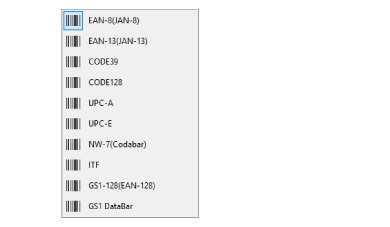
A various types of barcodes and QR codes can be added in labels. You can also create a series of barcodes or QR codes.
-
Click or on the tool box.
-
Make the settings, and then click OK.
-
Click at a position you want to insert the barcode or QR code.
 Note: Note:When you click either one of the icons, a setting window for the type of barcode or QR code you previously selected is displayed. Click beside the icons to select another type of barcode or QR code.
|

To create a series of barcodes or QR codes
In the Alphanumeric Sequence window, specify a range in the code to be serialized and set the start value and other settings.

 Adding an Automatic Serialization Object in Labels
The barcode or QR code is inserted in the Layout editing window.
QR Code is a registered trademark of DENSO WAVE INCORPORATED in Japan and other countries.
Introduction
Basic Operations
Creating a Variety of Labels
Printing
Changing Preference Settings
Appendix
Top > Creating a Variety of Labels > Adding a Barcode or QR Code
Adding a Barcode or QR Code
A various types of barcodes and QR codes can be added in labels. You can also create a series of barcodes or QR codes.
-
Click or on the tool box.
-
Make the settings, and then click OK.
-
Click at a position you want to insert the barcode or QR code.
|
Note: When you click either one of the icons, a setting window for the type of barcode or QR code you previously selected is displayed. Click beside the icons to select another type of barcode or QR code.
|
To create a series of barcodes or QR codes
In the Alphanumeric Sequence window, specify a range in the code to be serialized and set the start value and other settings.
Adding an Automatic Serialization Object in Labels
The barcode or QR code is inserted in the Layout editing window.
QR Code is a registered trademark of DENSO WAVE INCORPORATED in Japan and other countries.