Language
Epson

TM-m30II-S

User's Manual

Epson

TM-m30II-S

User's Manual

Troubleshoot
Troubleshooting

Before Using the Printer

Important Safety InformationProduct Information PageChecking Items Included with the Printer

Part Names

FrontRearBottom

Setup of the Printer

Placing the PrinterChanging the Paper WidthConnecting CablesUsing the Power Switch CoverConnecting Smart Devices

Setup of the Tablet

Tablets that Can be Mounted to the PrinterOutline Drawing for Mounting TabletsPreparation for SetupAttaching the Attachment to the Front TabletRemoving the Bottom CoverPreparing for Mounting the Front TabletMounting the Rear DisplayMounting the DM-D70Attaching the Bottom CoverMounting/Dismounting the Front TabletMounting/Dismounting the Rear DisplayHow to Attach the AC AdapterHow to Remove the AttachmentHow to Attach the Spare Adhesive Strips to the Attachment

Basic Operations

Turning the Power On/OffInstalling or Replacing the Roll PaperHow to Secure the PrinterHow to Hold the PrinterTransporting the Printer

Cleaning

Cleaning the Printer CaseCleaning the Thermal Head and the Platen Roller

Troubleshooting

Meanings of LED IndicationsPrintout is FaintCannot PrintThe Attachment is Pasted in the Wrong WayThe Attachment is BrokenWhen the Roll Paper JamsWhen Sending for Repair

Appendix

SpecificationsOptional KitsRestriction of UseCAUTIONSTrademarks

Top > Part Names > Front

Front

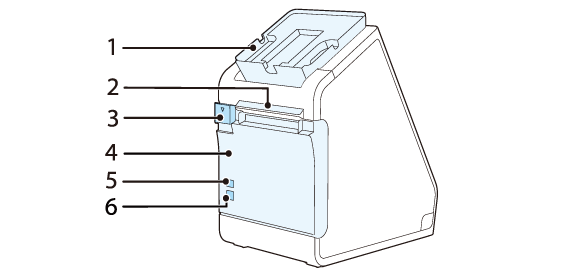
1

Front tablet holding part

Mount a front tablet on here.
You can adjust the angle of the front tablet.

2

Panel LED

Power LED: This turns on when the printer is on.

Error LED:
On: Indicates that printing is temporarily unavailable when an error has occurred such as there is no roll paper installed or the roll paper cover is open.
Flashing: Indicates an error such as a power failure. To clear this type of error, you need to turn the printer off and then back on.

Paper LED: On indicates a paper out.

Wi-Fi LED:
On: Indicates that the printer is connected to Wi-Fi.
Flashing: Indicates that communication is temporarily disabled because an IP address has not been acquired or for other reason.
Off: Indicates that the printer is not connected to Wi-Fi. This LED also stays off while the printer is connected to a wired LAN.

Ethernet LED:
On: Indicates that the printer is connected to Ethernet.
Flashing: Indicates that communication is temporarily disabled because an IP address has not been acquired or for other reason.
Off: Indicates that the printer is not connected to Ethernet. This LED also stays off while the printer is connected to a Wi-Fi.

Bluetooth LED:
On: Indicates that the printer is connected via Bluetooth.
Flashing: Indicates that the printer is waiting to be paired with another device.
Off: Indicates that the printer is not connected via Bluetooth.

3

Cover open lever

Operate this lever to open the roll paper cover.

4

Roll paper cover

Open this cover when installing or replacing the roll paper.

5

Feed button

Press this button once to feed the roll paper for one line. Hold down this button to continue feeding the roll paper.

6

Power switch

This switch turns the printer on or off.

  • Back
  • Top
  • Next
Troubleshoot
Troubleshooting

Before Using the Printer

Important Safety InformationProduct Information PageChecking Items Included with the Printer

Part Names

FrontRearBottom

Setup of the Printer

Placing the PrinterChanging the Paper WidthConnecting CablesUsing the Power Switch CoverConnecting Smart Devices

Setup of the Tablet

Tablets that Can be Mounted to the PrinterOutline Drawing for Mounting TabletsPreparation for SetupAttaching the Attachment to the Front TabletRemoving the Bottom CoverPreparing for Mounting the Front TabletMounting the Rear DisplayMounting the DM-D70Attaching the Bottom CoverMounting/Dismounting the Front TabletMounting/Dismounting the Rear DisplayHow to Attach the AC AdapterHow to Remove the AttachmentHow to Attach the Spare Adhesive Strips to the Attachment

Basic Operations

Turning the Power On/OffInstalling or Replacing the Roll PaperHow to Secure the PrinterHow to Hold the PrinterTransporting the Printer

Cleaning

Cleaning the Printer CaseCleaning the Thermal Head and the Platen Roller

Troubleshooting

Meanings of LED IndicationsPrintout is FaintCannot PrintThe Attachment is Pasted in the Wrong WayThe Attachment is BrokenWhen the Roll Paper JamsWhen Sending for Repair

Appendix

SpecificationsOptional KitsRestriction of UseCAUTIONSTrademarks

Top > Part Names > Front

Front

1

Front tablet holding part

Mount a front tablet on here.
You can adjust the angle of the front tablet.

2

Panel LED

Power LED: This turns on when the printer is on.

Error LED:
On: Indicates that printing is temporarily unavailable when an error has occurred such as there is no roll paper installed or the roll paper cover is open.
Flashing: Indicates an error such as a power failure. To clear this type of error, you need to turn the printer off and then back on.

Paper LED: On indicates a paper out.

Wi-Fi LED:
On: Indicates that the printer is connected to Wi-Fi.
Flashing: Indicates that communication is temporarily disabled because an IP address has not been acquired or for other reason.
Off: Indicates that the printer is not connected to Wi-Fi. This LED also stays off while the printer is connected to a wired LAN.

Ethernet LED:
On: Indicates that the printer is connected to Ethernet.
Flashing: Indicates that communication is temporarily disabled because an IP address has not been acquired or for other reason.
Off: Indicates that the printer is not connected to Ethernet. This LED also stays off while the printer is connected to a Wi-Fi.

Bluetooth LED:
On: Indicates that the printer is connected via Bluetooth.
Flashing: Indicates that the printer is waiting to be paired with another device.
Off: Indicates that the printer is not connected via Bluetooth.

3

Cover open lever

Operate this lever to open the roll paper cover.

4

Roll paper cover

Open this cover when installing or replacing the roll paper.

5

Feed button

Press this button once to feed the roll paper for one line. Hold down this button to continue feeding the roll paper.

6

Power switch

This switch turns the printer on or off.

  • Back
  • Top
  • Next

©Seiko Epson Corporation 2020 - 2021 (M00130602 EN)

Language selection

  • English
  • Français
  • Deutsch
  • Nederlands
  • Italiano
  • Español
  • Português
  • Türkçe
  • Ελληνικά
  • Slovenščina
  • Hrvatski
  • Македонски
  • Srpski
  • Dansk
  • Suomi
  • Norsk
  • Svenska
  • Polski
  • Česky
  • Magyar
  • Slovenčina
  • Română
  • Български
  • Latviešu
  • Lietuvių
  • Eesti
  • العربية
  • 日本語