Language
Epson

TM-m30II-S

User's Manual

Epson

TM-m30II-S

User's Manual

Troubleshoot
Troubleshooting

Before Using the Printer

Important Safety InformationProduct Information PageChecking Items Included with the Printer

Part Names

FrontRearBottom

Setup of the Printer

Placing the PrinterChanging the Paper WidthConnecting CablesUsing the Power Switch CoverConnecting Smart Devices

Setup of the Tablet

Tablets that Can be Mounted to the PrinterOutline Drawing for Mounting TabletsPreparation for SetupAttaching the Attachment to the Front TabletRemoving the Bottom CoverPreparing for Mounting the Front TabletMounting the Rear DisplayMounting the DM-D70Attaching the Bottom CoverMounting/Dismounting the Front TabletMounting/Dismounting the Rear DisplayHow to Attach the AC AdapterHow to Remove the AttachmentHow to Attach the Spare Adhesive Strips to the Attachment

Basic Operations

Turning the Power On/OffInstalling or Replacing the Roll PaperHow to Secure the PrinterHow to Hold the PrinterTransporting the Printer

Cleaning

Cleaning the Printer CaseCleaning the Thermal Head and the Platen Roller

Troubleshooting

Meanings of LED IndicationsPrintout is FaintCannot PrintThe Attachment is Pasted in the Wrong WayThe Attachment is BrokenWhen the Roll Paper JamsWhen Sending for Repair

Appendix

SpecificationsOptional KitsRestriction of UseCAUTIONSTrademarks

Top > Basic Operations > How to Secure the Printer

How to Secure the Printer

If you want to secure the printer to the installation site such as a table, use the optional tape (model number: DF-10). Because hook and loop fastening system is used, the tape consists of two sheets.

Follow the procedure below to secure the printer with the tape.

  1. Turn off the printer.

  2. Disconnect the AC cable plug from the power outlet.

  3. Dismount the front tablet and the rear display.

  4. Mounting/Dismounting the Front Tablet

    Mounting/Dismounting the Rear Display

  5. Lay the printer down.

  6. Remove the backing sheet from the tape.

  7. Attach four pieces of the tape to the bottom of the printer, and then remove another backing sheet from each tape.

  8. Place the printer on the installation surface, and then hold the printer down to secure it.

Note:
  • To remove the printer from the installation surface disengaging the hook and loop fastener tape, apply a force to peel the printer from the surface. However, if you repeat removing and reattaching the tape multiple times, the tape may become less cohesive. In such case, replace the tape (DF-10) with new ones.

  • Since four pieces of the tape need to be attached to the printer, you need two sets of DF-10 at a time.

  • Back
  • Top
  • Next
Troubleshoot
Troubleshooting

Before Using the Printer

Important Safety InformationProduct Information PageChecking Items Included with the Printer

Part Names

FrontRearBottom

Setup of the Printer

Placing the PrinterChanging the Paper WidthConnecting CablesUsing the Power Switch CoverConnecting Smart Devices

Setup of the Tablet

Tablets that Can be Mounted to the PrinterOutline Drawing for Mounting TabletsPreparation for SetupAttaching the Attachment to the Front TabletRemoving the Bottom CoverPreparing for Mounting the Front TabletMounting the Rear DisplayMounting the DM-D70Attaching the Bottom CoverMounting/Dismounting the Front TabletMounting/Dismounting the Rear DisplayHow to Attach the AC AdapterHow to Remove the AttachmentHow to Attach the Spare Adhesive Strips to the Attachment

Basic Operations

Turning the Power On/OffInstalling or Replacing the Roll PaperHow to Secure the PrinterHow to Hold the PrinterTransporting the Printer

Cleaning

Cleaning the Printer CaseCleaning the Thermal Head and the Platen Roller

Troubleshooting

Meanings of LED IndicationsPrintout is FaintCannot PrintThe Attachment is Pasted in the Wrong WayThe Attachment is BrokenWhen the Roll Paper JamsWhen Sending for Repair

Appendix

SpecificationsOptional KitsRestriction of UseCAUTIONSTrademarks

Top > Basic Operations > How to Secure the Printer

How to Secure the Printer

If you want to secure the printer to the installation site such as a table, use the optional tape (model number: DF-10). Because hook and loop fastening system is used, the tape consists of two sheets.

Follow the procedure below to secure the printer with the tape.

  1. Turn off the printer.

  2. Disconnect the AC cable plug from the power outlet.

  3. Dismount the front tablet and the rear display.

  4. Mounting/Dismounting the Front Tablet

    Mounting/Dismounting the Rear Display
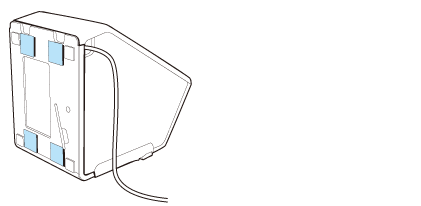
  5. Lay the printer down.

  6. Remove the backing sheet from the tape.

  7. Attach four pieces of the tape to the bottom of the printer, and then remove another backing sheet from each tape.

  8. Place the printer on the installation surface, and then hold the printer down to secure it.

Note:
  • To remove the printer from the installation surface disengaging the hook and loop fastener tape, apply a force to peel the printer from the surface. However, if you repeat removing and reattaching the tape multiple times, the tape may become less cohesive. In such case, replace the tape (DF-10) with new ones.

  • Since four pieces of the tape need to be attached to the printer, you need two sets of DF-10 at a time.

  • Back
  • Top
  • Next

©Seiko Epson Corporation 2020 - 2021 (M00130602 EN)

Language selection

  • English
  • Français
  • Deutsch
  • Nederlands
  • Italiano
  • Español
  • Português
  • Türkçe
  • Ελληνικά
  • Slovenščina
  • Hrvatski
  • Македонски
  • Srpski
  • Dansk
  • Suomi
  • Norsk
  • Svenska
  • Polski
  • Česky
  • Magyar
  • Slovenčina
  • Română
  • Български
  • Latviešu
  • Lietuvių
  • Eesti
  • العربية
  • 日本語