
Before Using the Printer
Part Names
Setup of the Printer
Setup of the Tablet
Basic Operations
Cleaning
Troubleshooting
Appendix
Top > Part Names > Bottom
Bottom
|
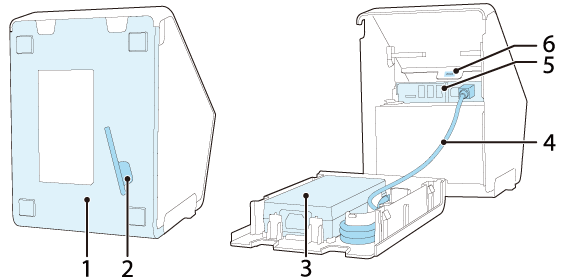
1 |
Bottom cover |
Remove this cover when connecting interface cables to the connectors inside the printer. |
|
2 |
Recess for a hexagonal spanner |
Stores a hexagonal spanner. |
|
3 |
AC adapter |
Supplies power to the printer. |
|
4 |
DC cable |
The AC adapter supplies power to the printer through this cable. |
|
5 |
Connectors |
For connecting various devices to the printer. |
|
6 |
Security slot |
Use here to attach an anti-theft tool such as a wire. |
Connectors
The connectors are located inside the printer.
|
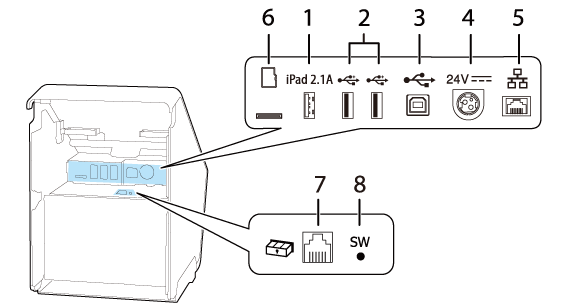
1 |
USB connector (USB-A - Device Charging) Color of the USB connector: white |
Connects a USB cable of a tablet. Enables communication with the tablet while charging the tablet. If the tablet is an iOS device, and the printer is connected to a network, access to the internet is available through a Lightning to USB cable. |
|
2 |
USB connector (Type-A) Color of the USB connector: black |
Connects a USB cable of a peripheral device such as a wireless LAN unit, customer display, or handheld scanner. |
|
3 |
USB connector (Type-B) |
Connects the USB cable for connecting to computers. |
|
4 |
Power supply connector |
Connects the DC cable for the AC adapter. |
|
5 |
Ethernet connector |
Connects the 10BASE-T/100BASE-TX LAN cable. |
| 6 |
microSD card slot |
For a special purpose and cannot be used for daily use. For more details, contact qualified service personnel. |
|
7 |
Drawer kick connector |
Connects the modular cable for the cash drawer. |
|
8 |
Status sheet button |
Use this button to print a status sheet on interfaces or initialize the settings on interfaces. |
 Note:
Note:About the USB connector (USB-A - Device Charging, The white USB connector)
-
Use a genuine USB cable for your tablet, smart phone, or your USB device.
-
Depending on the charging function of your device, it may be impossible to charge the device through the printer.
-
To set an optimum current value for charging the connected device, it may take several seconds before charging starts. Charging may stop temporarily immediately after the device is connected.
-
If a device that requires current that exceeds the rated current of the USB connector (USB-A - Device Charging) is connected, charging is stopped.
-
Depending on the usage conditions or settings of the device, such as maximum screen brightness or disabling of the sleep function, the device may not be charged to 100%.
-
Seiko Epson Corporation assumes no responsibility for economic damages or problems arising from failure of charging the connected device due to a failure or malfunction of the product.
-
When a tablet computer is connected to the USB-A - Device Charging connector, the Bluetooth function of the printer is disabled. To charge the device keeping it connected via Bluetooth, change the Interface selection setting to "Bluetooth only". For more details, see the Technical Reference Guide. However, if you do so, the maximum supply current is limited to 0.5 A, which may not be enough for charging some types of tablet. Please use the tablet after testing and evaluating it adequately.
-
When connecting an Android device to the USB-A – Device Charging connector for data communication, make sure that the device satisfies the following requirements.
Requirements: The version of Android OS is 10 or later with kernel version 4.9.15 or later
However, Epson does not guarantee normal operation of all Android devices even if they satisfy the requirements. Run some tests before actually using the device.
-
If the printer is connected to a wired network, an iOS tablet connected to the printer via the USB connector can access the network through the Lightning to USB cable. For more details, see "Network Tethering" section of Technical Reference Guide.
Before Using the Printer
Part Names
Setup of the Printer
Setup of the Tablet
Basic Operations
Cleaning
Troubleshooting
Appendix
Top > Part Names > Bottom
Bottom
|
1 |
Bottom cover |
Remove this cover when connecting interface cables to the connectors inside the printer. |
|
2 |
Recess for a hexagonal spanner |
Stores a hexagonal spanner. |
|
3 |
AC adapter |
Supplies power to the printer. |
|
4 |
DC cable |
The AC adapter supplies power to the printer through this cable. |
|
5 |
Connectors |
For connecting various devices to the printer. |
|
6 |
Security slot |
Use here to attach an anti-theft tool such as a wire. |
Connectors
The connectors are located inside the printer.
|
1 |
USB connector (USB-A - Device Charging) Color of the USB connector: white |
Connects a USB cable of a tablet. Enables communication with the tablet while charging the tablet. If the tablet is an iOS device, and the printer is connected to a network, access to the internet is available through a Lightning to USB cable. |
|
2 |
USB connector (Type-A) Color of the USB connector: black |
Connects a USB cable of a peripheral device such as a wireless LAN unit, customer display, or handheld scanner. |
|
3 |
USB connector (Type-B) |
Connects the USB cable for connecting to computers. |
|
4 |
Power supply connector |
Connects the DC cable for the AC adapter. |
|
5 |
Ethernet connector |
Connects the 10BASE-T/100BASE-TX LAN cable. |
| 6 |
microSD card slot |
For a special purpose and cannot be used for daily use. For more details, contact qualified service personnel. |
|
7 |
Drawer kick connector |
Connects the modular cable for the cash drawer. |
|
8 |
Status sheet button |
Use this button to print a status sheet on interfaces or initialize the settings on interfaces. |
Note:About the USB connector (USB-A - Device Charging, The white USB connector)
-
Use a genuine USB cable for your tablet, smart phone, or your USB device.
-
Depending on the charging function of your device, it may be impossible to charge the device through the printer.
-
To set an optimum current value for charging the connected device, it may take several seconds before charging starts. Charging may stop temporarily immediately after the device is connected.
-
If a device that requires current that exceeds the rated current of the USB connector (USB-A - Device Charging) is connected, charging is stopped.
-
Depending on the usage conditions or settings of the device, such as maximum screen brightness or disabling of the sleep function, the device may not be charged to 100%.
-
Seiko Epson Corporation assumes no responsibility for economic damages or problems arising from failure of charging the connected device due to a failure or malfunction of the product.
-
When a tablet computer is connected to the USB-A - Device Charging connector, the Bluetooth function of the printer is disabled. To charge the device keeping it connected via Bluetooth, change the Interface selection setting to "Bluetooth only". For more details, see the Technical Reference Guide. However, if you do so, the maximum supply current is limited to 0.5 A, which may not be enough for charging some types of tablet. Please use the tablet after testing and evaluating it adequately.
-
When connecting an Android device to the USB-A – Device Charging connector for data communication, make sure that the device satisfies the following requirements.
Requirements: The version of Android OS is 10 or later with kernel version 4.9.15 or later
However, Epson does not guarantee normal operation of all Android devices even if they satisfy the requirements. Run some tests before actually using the device.
-
If the printer is connected to a wired network, an iOS tablet connected to the printer via the USB connector can access the network through the Lightning to USB cable. For more details, see "Network Tethering" section of Technical Reference Guide.