Setting Barcodes
You can set the values printed on receipts for each barcode type.
The information you set in Craft Admin is printed on receipts.
-
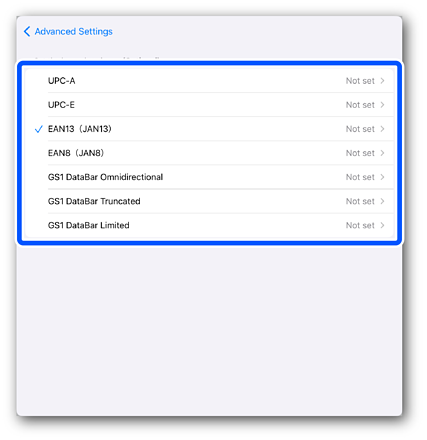
Select the barcode type to print on receipts.
 Important:
Make sure the barcode type matches the setting you made in Preferences > Receipt Settings > Barcode Settings > Barcode Type.
Barcodes without a checkmark on the left side of the screen are not printed.
-
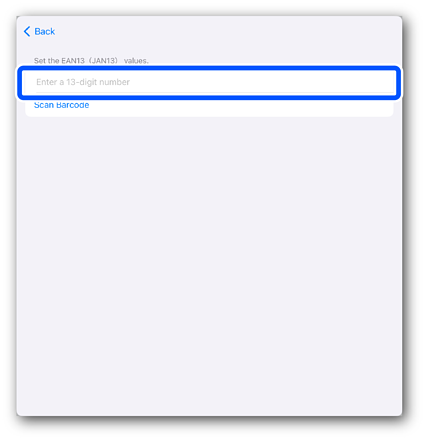
Enter the value to print on receipts.
 Note:
Note:-
The number of digits you can enter varies by barcode type.
-
You can set a value read by the camera by tapping Scan Barcode.
-
-
Tap Back > Advanced Settings to return to the Create / Edit Item screen.

