Setting Automatic Printing Information
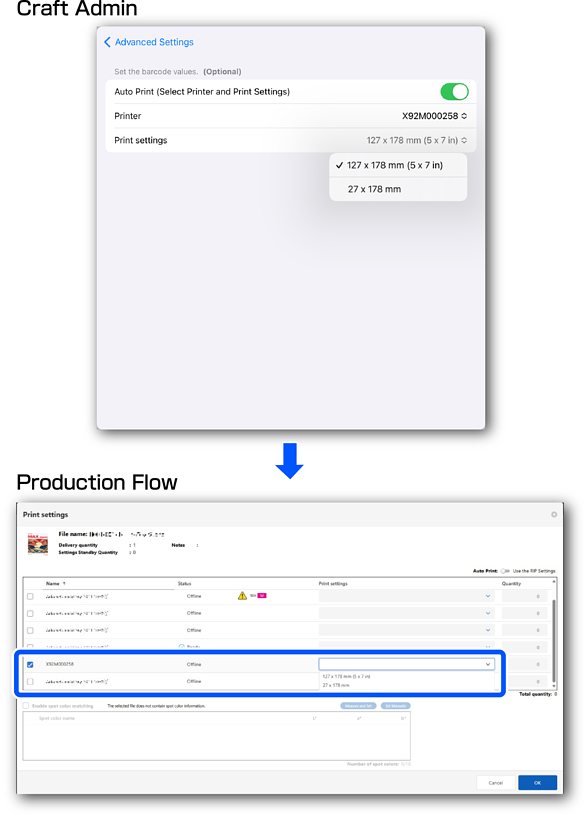
You can set combinations of printers and print settings registered in Production Flow from Craft Admin.
Items with automatic printing enabled are automatically printed using the specified printer and print settings whenever you order from Craft Designer, without needing to take any steps in Production Flow.
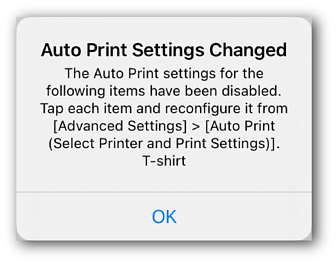
If the Auto Print settings have been updated pop-up is displayed, the printer or print settings may have been changed in Production Flow.
Follow the steps below to reconfigure the automatic printing information for each item.
-
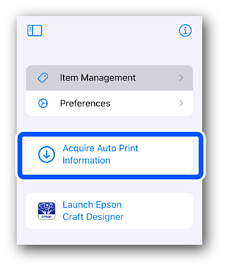
Tap Acquire Print Settings on the TOP screen to acquire information from Production Flow.
 Note:
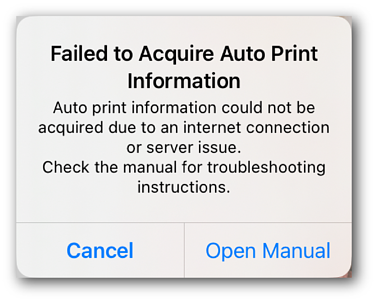
Note:If the Failed to Acquire Auto Print Information error is displayed, your iPad may not be connected to the internet.
Check your network connection, and then tap Acquire Print Settings again.
If you still cannot acquire the information, there may be a problem with the server. Wait for a while until the problem is resolved, and then try again.
-
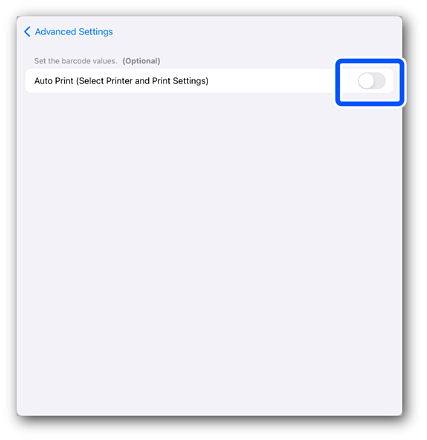
Enable Auto Print (Select Printer and Print Settings).
 Note:
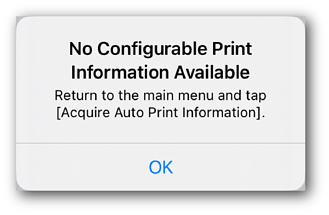
Note:If No print settings available. is displayed, the following causes are possible.
-
You may not have acquired the automatic printing information. Repeat step 1.
-
Printer information and print settings may not be registered in Production Flow. Check the Production Flow settings.
-
-
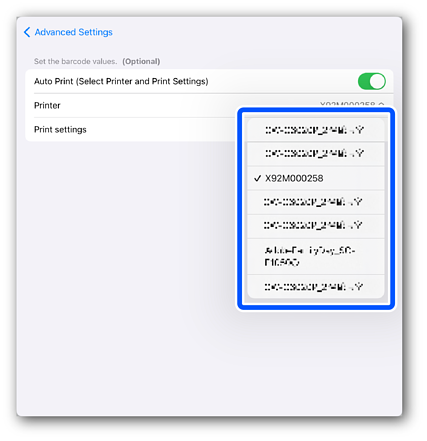
Select the printer you want to use from the Printer drop-down list.
-
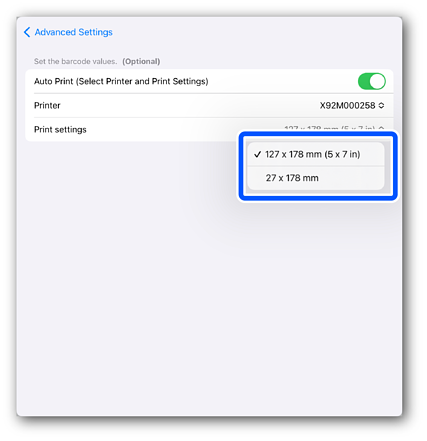
Select the print settings you want to use from the Print settings drop-down list.
-
Tap Advanced Settings to return to the item registration/editing screen.
