Setting Receipt Printing Information
You can set the print information for receipts that customers receive when they place an order.
-
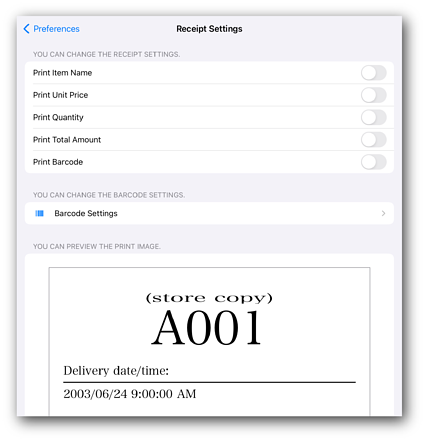
Set the items you want to print on receipts.
You can check the print image of selected items in the preview at the bottom of the screen.
Item
Explanation
Print Item Name
Prints the item name.
Print Unit Price
Prints the unit price.
Print Quantity
Prints the quantity of ordered items.
Print Total Amount
Prints the total amount.
Print Barcode
Prints the product code registered for the item as a barcode.
-
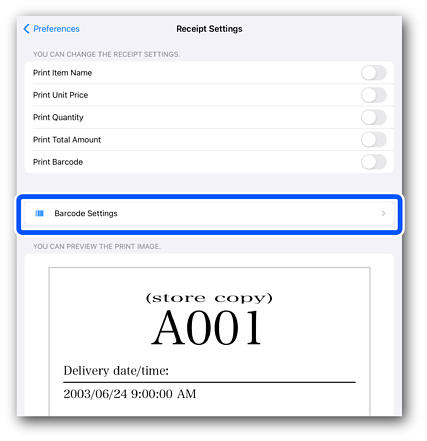
Tap Barcode Settings.
-
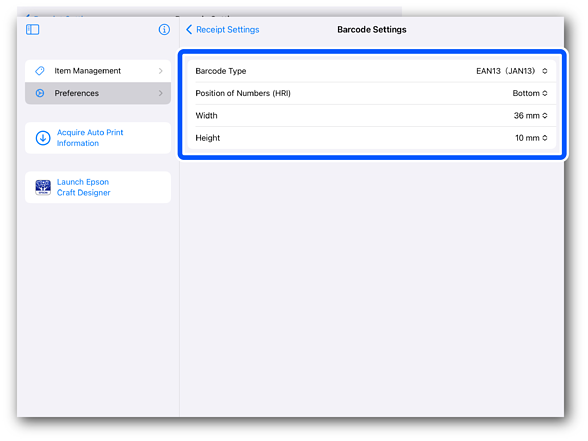
Change the barcode settings as needed.
You can check the settings by tapping Receipt Settings to return to the receipt settings screen and view the preview.
Item
Explanation
Barcode Type
Sets the barcode type.
Position of Numbers (HRI)
Sets the position of the numbers (HRI) printed above and below the barcode.
Width
Sets the barcode width.
The width options displayed in the drop-down menu vary depending on the selected Barcode Type.
Height
Sets the barcode height.
 Note:
Note:If Print Barcode is disabled on the receipt settings screen, barcodes will not be printed.
-
Tap Receipt Settings > Preferences to return to the preferences screen.
-
Start Craft Designer to reflect your changes.
